


Web Landscapes Client guides Google Business Profile access
Give us access to your Google Business Profile
Your Business Profile is the listing that shows your business on Google Search and Maps. As a manager we can update your hours, photos, posts and website link, while you stay the owner.
- Time
- About 5 minutes
- You'll need
- The Google account that owns your profile
- Role to choose
- Manager
6 steps. Select a number to go straight to it.
What your profile shows
When someone searches for your business, or for what you do nearby, Google shows a profile like this one. Here's an example for an invented dental office, and what we keep up to date on yours.
- Rating and reviewsThe average of your customers' stars, and how many reviews you have. Owners and managers can reply to each one.
- HoursRegular hours, plus holiday hours so nobody drives to a closed door.
- Website buttonPoints to your new site, to the page that turns visitors into customers.
- Posts and photosOffers, news and fresh photos, which show the profile is active.
How reviews work
- Everyone sees themYour stars show next to your name on Search and Maps, before anyone visits your site.
- Reply to every oneA short, polite reply, good or bad, tells future customers someone is listening.
- Ask happy customersYour profile has a review link you can share. Send it after a good visit, while it's fresh.
- Never buy or fake themGoogle removes paid or self-written reviews and can suspend the profile. You can't delete a real review, but you can report one that breaks Google's rules.
Before you start
- Sign in with the Google account that owns the profile. Only an owner can add people.
- The email address to invite is
contact@weblandscapes.com. Copy it exactly. If we gave you a different address for your project, use that one. - No profile yet, or Google says someone else owns it? Skip this guide and tell us: we'll help you claim it first.
Choose Manager, not Owner. A manager can make changes to the profile but can't add people, remove you or transfer ownership. Owner can do all of that, and we never need it.
Steps on a computer
-
Open your Business Profile
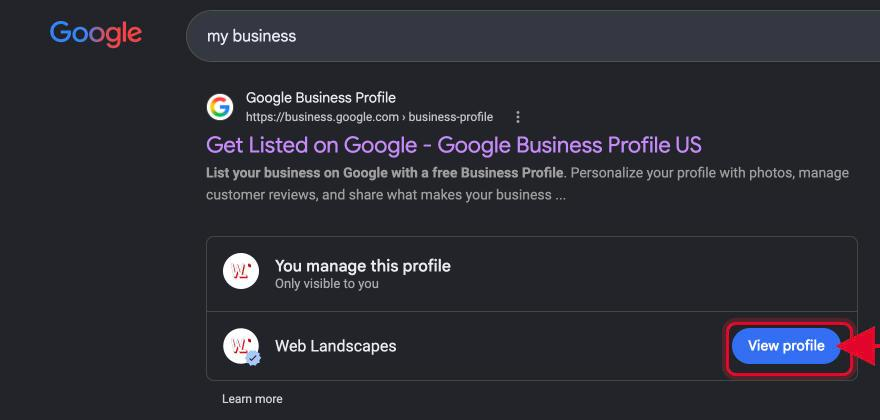
Go to business.google.com and sign in. In Business Profile Manager, select See your profile next to your business (number 1). Google opens your profile on Search, with a Your business on Google panel only you can see.
 Tip
Shortcut: search Google for my business while signed in, and select View profile.
-
Open Business Profile settings
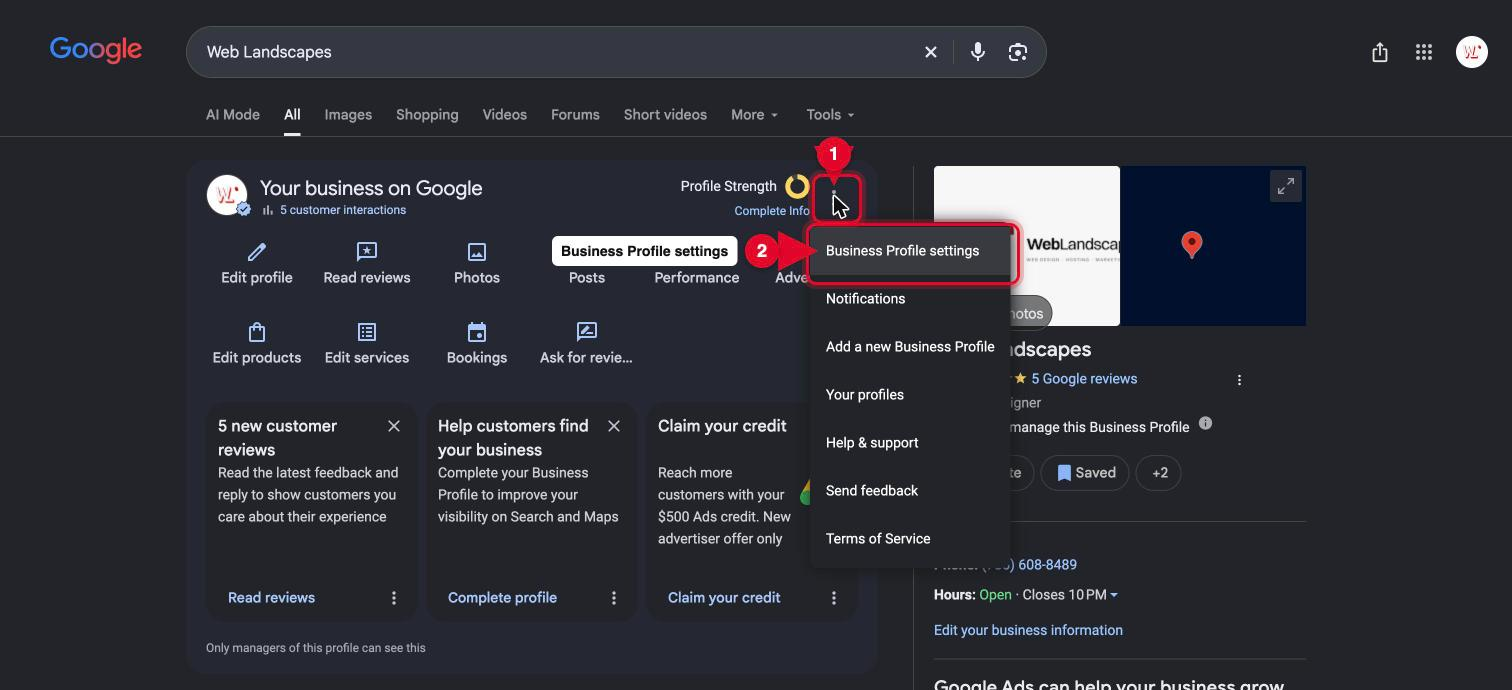
In the Your business on Google panel, select the three dots at the top right (number 1), then Business Profile settings (number 2).
-
Select People and access
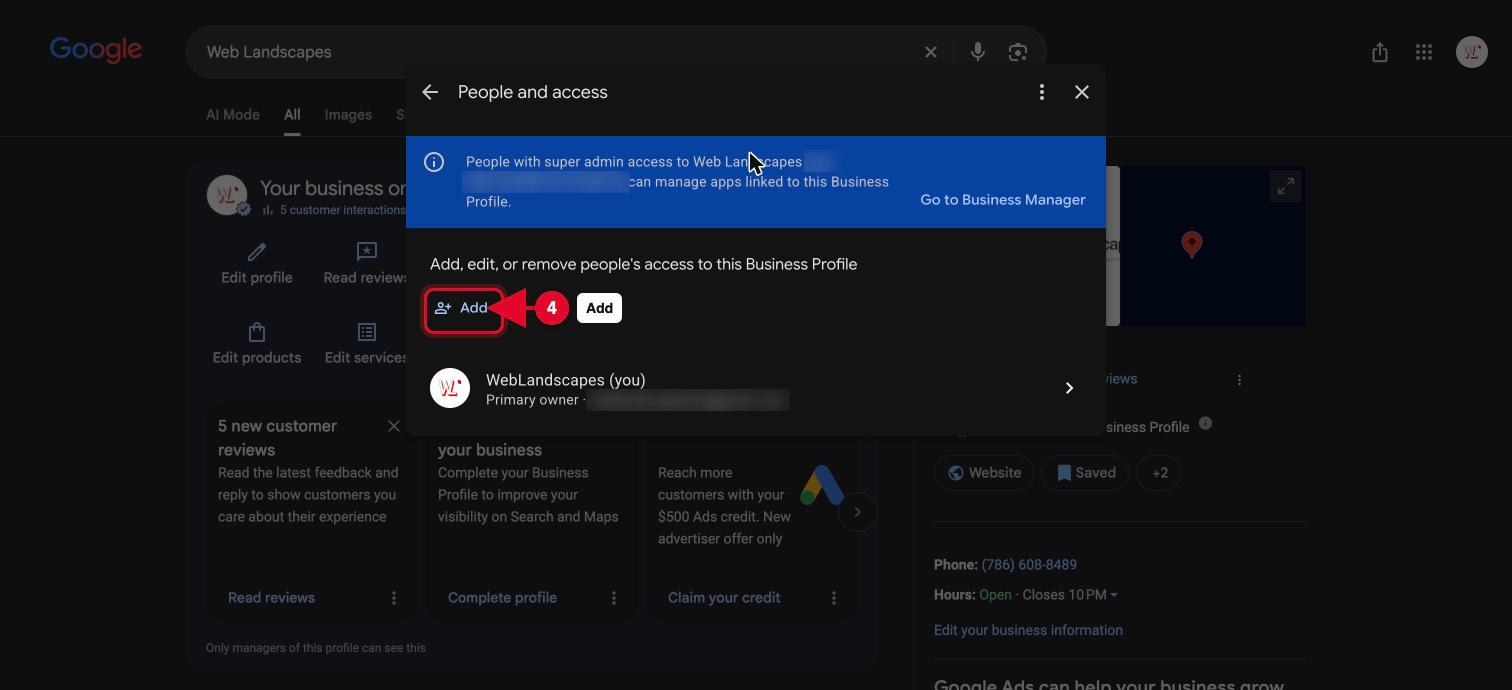
Select People and access (number 3). It lists everyone who can manage the profile.
 Important
Only use People and access. Never select Remove Business Profile in this list: it closes or deletes your listing on Google.
-
Select Add
Select Add (number 4).
-
Type our email and choose Manager
Type
contact@weblandscapes.comin Email address (number 5). Under Access, choose Manager (number 6).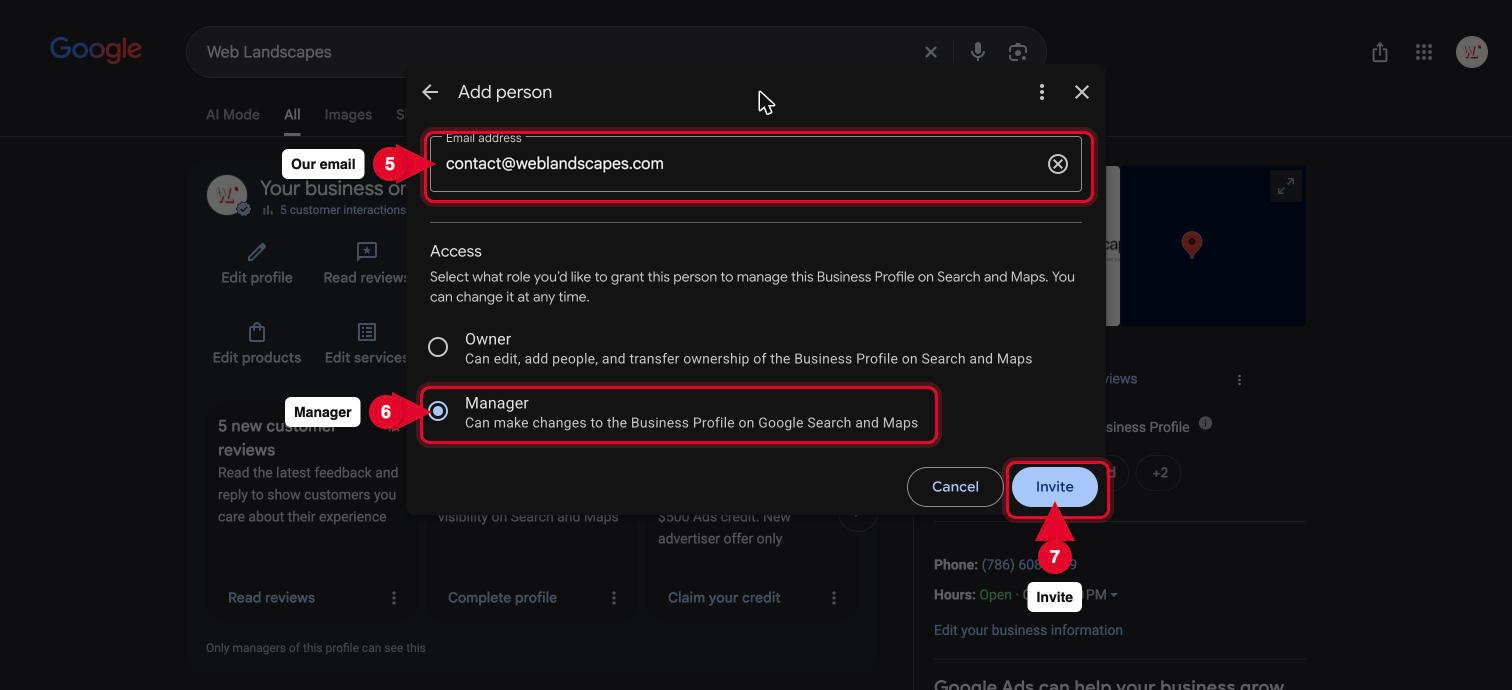
-
Select Invite
Select Invite (number 7 in the picture above). Google emails us the invitation, and we accept it.
On a phone instead
In the Google Maps app or the Google app, signed in with the owner's account, open your Business Profile. Then select the three dots, Business Profile settings, People and access and Add, and follow steps 5 and 6 above.
You'll know it worked when
- Our address shows under People and access as invited.
- Once we accept, it shows with the role Manager.
- We email you to confirm.
If something goes wrong
I don't see People and access
You're probably signed in with a Google account that is a manager, not an owner, or with a different account altogether. Switch accounts from your picture at the top right, or ask the profile's owner to send the invite.
I can't find my profile at all
It may not be claimed or verified yet. Tell us the business name and address and we'll help you claim it.
The invite has been pending for days
In People and access, cancel the pending invite and send it again. Check the address is spelled exactly as above.
I want to remove your access later
In People and access, select our name, then remove access. Your profile stays as it is.
Stuck on a step?
Tell us which step and what you see on the screen, and we'll walk you through it. A screenshot helps. Never send us a password or a backup code: we won't ask for one.
Contact@WebLandscapes.com+1 786 608 8489Book a call and do it together
Official help: Add or remove owners and managers
Next guideSet up email on your domain →