


Web Landscapes Client guides Cloudflare account
Create your Cloudflare account
Cloudflare is the company that hosts your website and runs your domain. You open the account in your own name, so the site, the domain and the bills are always yours. We get our own login to it in the next guide.
- Time
- About 10 minutes
- You'll need
- An email you check, and your phone
- Cost
- Free. No card needed to sign up.
9 steps. Select a number to go straight to it.
What your account will hold
- Your websiteThe hosting your site runs on, close to visitors everywhere.
- Your domainYour address on the web, and the settings that point it to your site.
- Email forwardingMail sent to your domain, passed on to the inbox you choose.
- SecurityProtection from spam, bots and attacks, switched on for your site.
Before you start
- Use an email address you'll keep for years, ideally your business address (for example you@yourbusiness.com). Cloudflare sends renewal, billing and security messages there, and it's how you get back in if you forget your password.
- Keep your phone nearby. At the end you'll set up two-step login with an authenticator app.
- Choose a strong password and save it in a password manager or somewhere safe. Don't share it with anyone, us included: we get our own access in the next guide.
Steps
-
Open the Cloudflare sign-up page
On a computer, go to dash.cloudflare.com/sign-up.
-
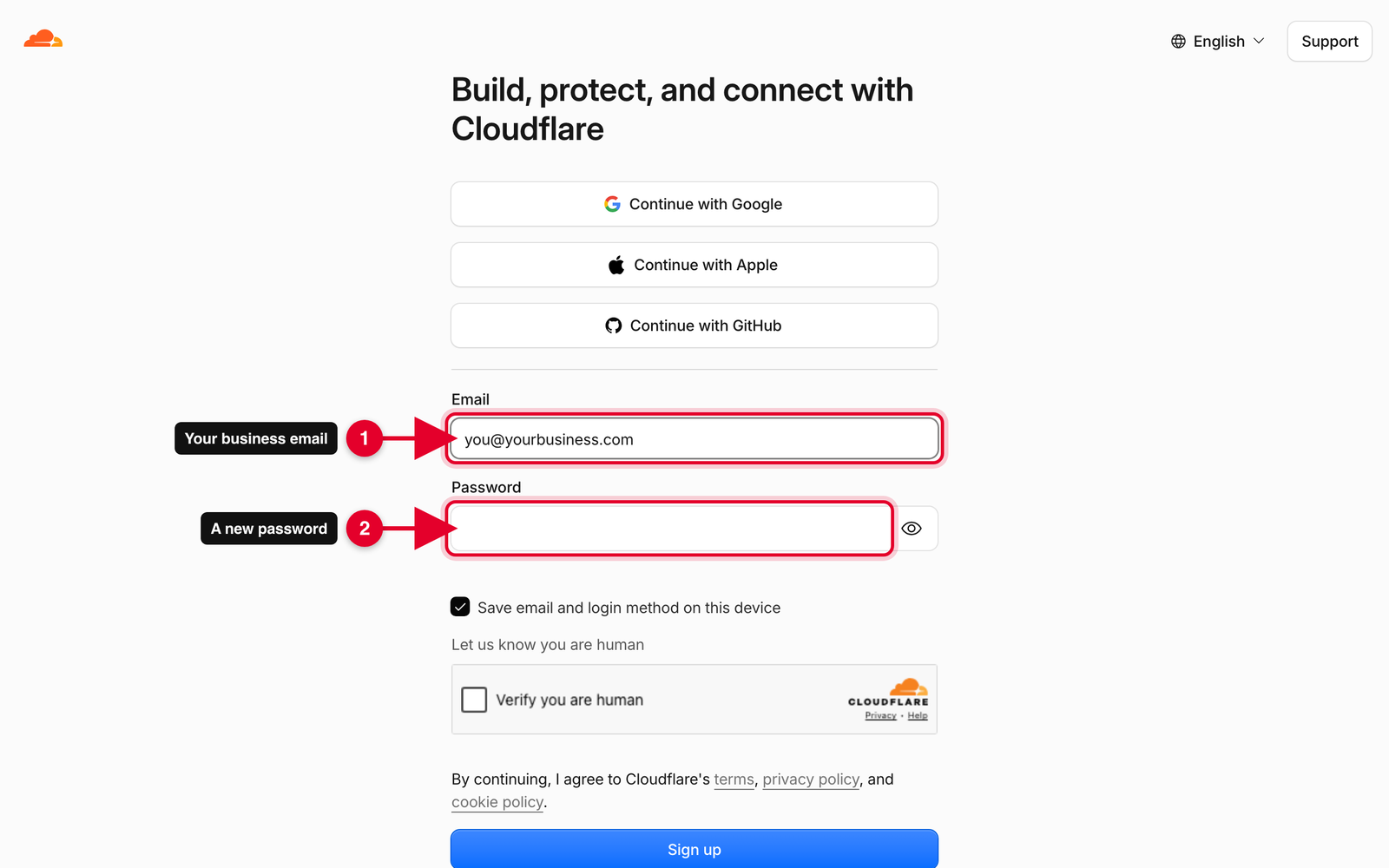
Enter your email and a new password
Type your business email in Email and your new password in Password.
TipYou'll also see Continue with Google, Apple or GitHub. We suggest email and password instead, so your Cloudflare account doesn't depend on another login.
-
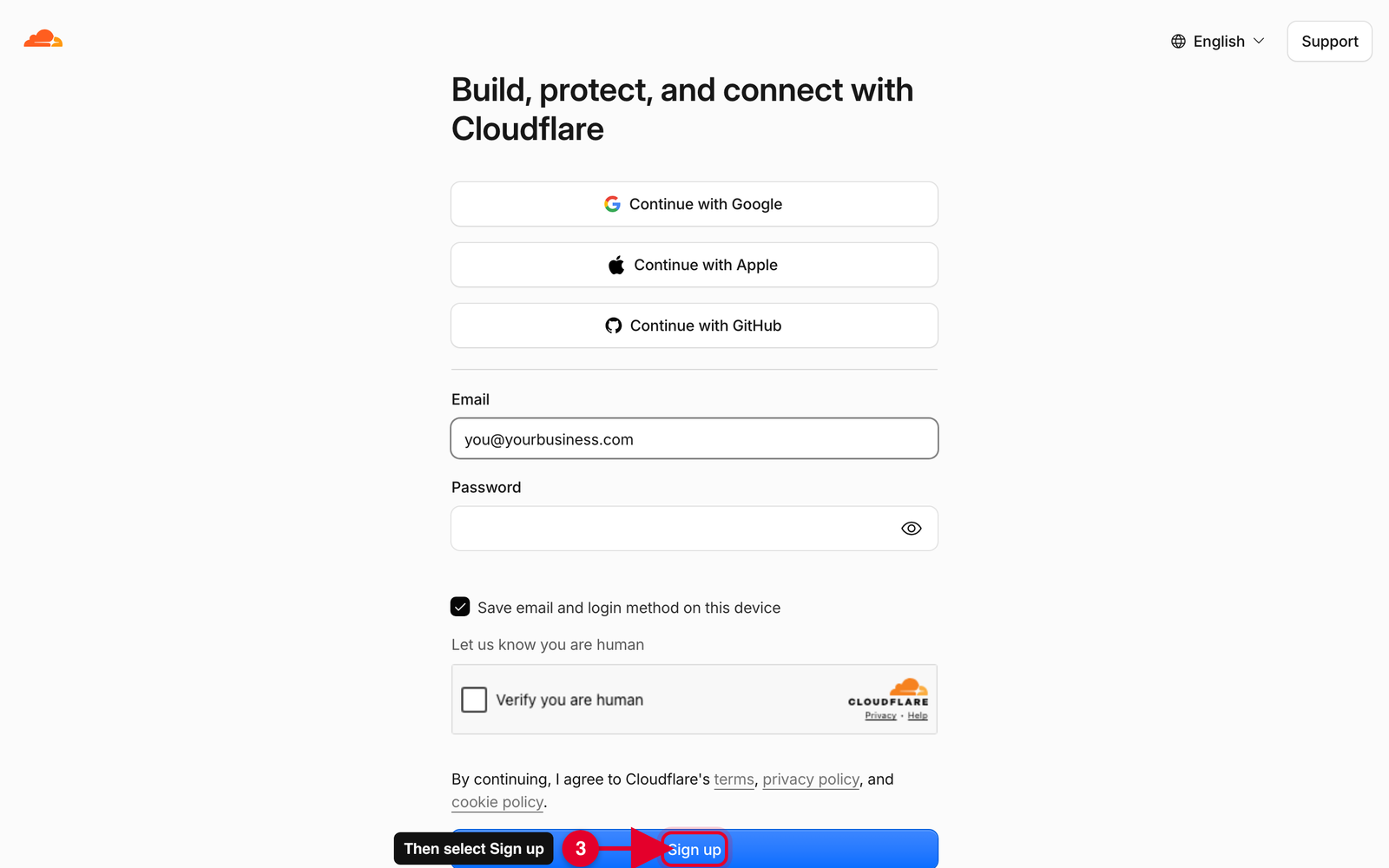
Tick the box and select Sign up
Tick Verify you are human, then select Sign up. Cloudflare opens your new dashboard.
-
Verify your email
Open the email Cloudflare just sent you and select the link in it to verify your address. If it isn't in your inbox within five minutes, look in spam, junk or promotions.
-
Skip the setup questions
Cloudflare may ask what you plan to build, offer to add a domain or show you its plans. You don't need to answer, add anything or pick a plan: new accounts start on the Free plan, and we set up the rest.
-
Open your profile's Authentication page
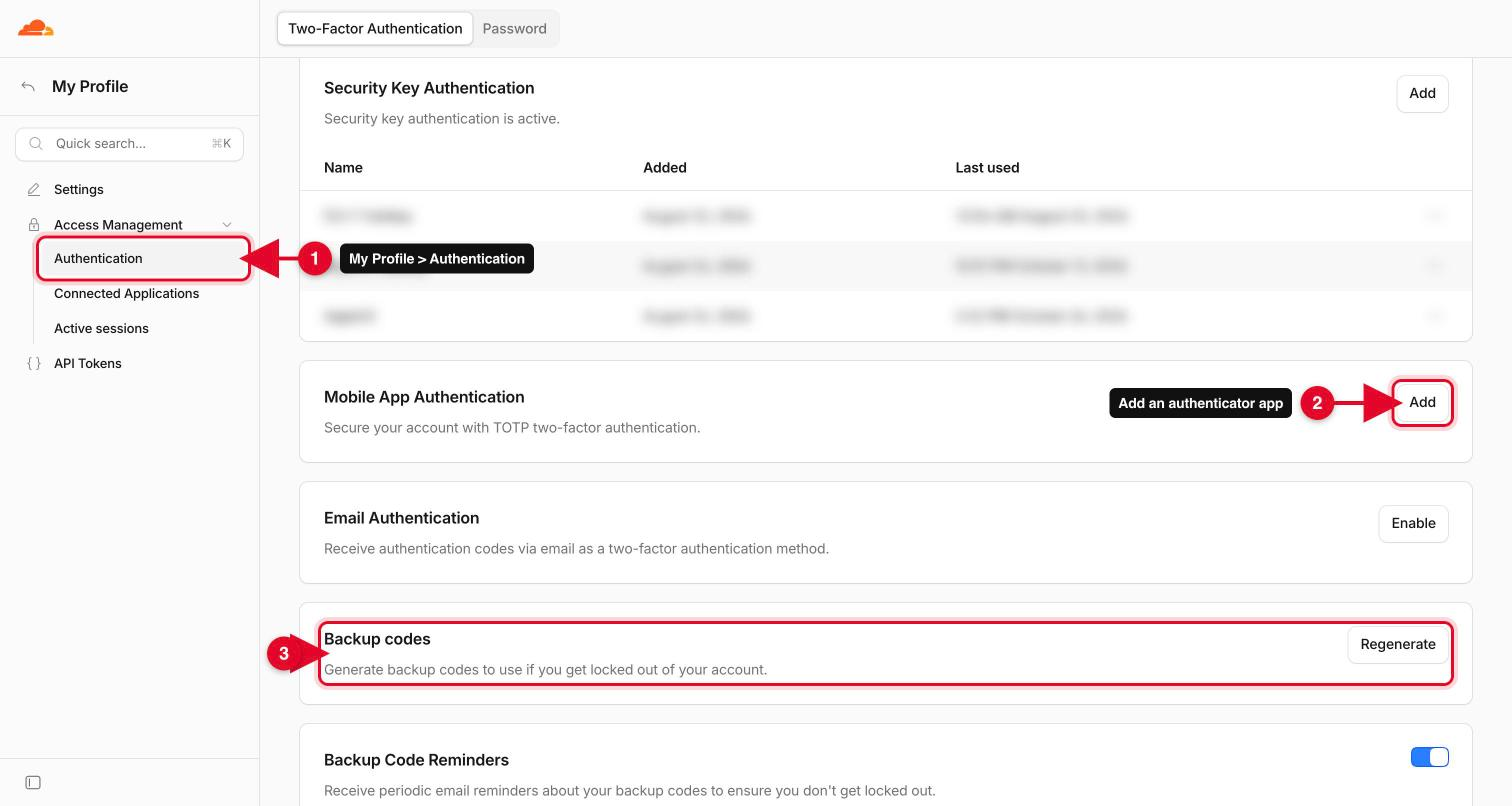
Select the person icon in the top right corner, then My Profile. In the menu on the left, select Authentication (number 1 in the picture).
-
Turn on two-step login
Next to Mobile App Authentication, select Add (number 2 in the picture above). Open an authenticator app on your phone (Google Authenticator, Microsoft Authenticator or your password manager), scan the QR code on the screen and type the six-digit code it shows.
TipIf you have a security key or a phone with a fingerprint or face login, you can add it under Security Key Authentication too. Two methods are better than one.
-
Save your backup codes
When two-step login is on, Cloudflare offers you a set of backup codes. Select Download or Print and keep them somewhere other than your phone. They are the only way in if you lose the phone. You can make a new set any time under Backup codes (number 3 in the picture above).
ImportantDon't skip this. Without your phone or a backup code, getting back into the account means a slow identity check with Cloudflare, and nobody can change your site in the meantime.
-
Give us access
Your account is ready. Now invite us as a member so we can build your site without your password: Give Web Landscapes access to Cloudflare.
You'll know it worked when
- You can sign in at dash.cloudflare.com with your email and password.
- After your password, Cloudflare asks for the six-digit code from your phone.
- Your backup codes are saved somewhere you can find them without your phone.
If something goes wrong
The verification email never came
Search your inbox, spam and promotions for Cloudflare. If it still isn't there, sign in at dash.cloudflare.com: while your email isn't verified, Cloudflare shows a notice with a way to send the email again. Check the address is spelled right.
It says the email is already in use
You, or someone at your business, made a Cloudflare account with that address before. Go to the sign-in page and select Forgot your password to get back into it. Then use that account; you don't need a second one.
I lost or changed my phone
Sign in with your password and one of your backup codes. Then, on the Authentication page, remove the old phone and add the new one.
Someone else at my business should own it
Use an address the business controls, such as office@ or admin@ your domain, so the account doesn't leave with one person. Cloudflare recommends this for business accounts too.
Stuck on a step?
Tell us which step and what you see on the screen, and we'll walk you through it. A screenshot helps. Never send us a password or a backup code: we won't ask for one.
Contact@WebLandscapes.com+1 786 608 8489Book a call and do it together
Official help: Create a Cloudflare account · Two-factor authentication
Next guideGive Web Landscapes access to Cloudflare →