


Web Landscapes Guides Marketing email with Brevo
Send a marketing email with Brevo
Brevo sends newsletters and offers to a list, adds the unsubscribe link for you, and counts opens and clicks. This guide goes from an empty account to a scheduled campaign, with the setup that keeps your email out of spam.
- Time
- About 1 hour for the setup, then 30 minutes per email
- You'll need
- An email address on your own domain, access to your domain's DNS, and a list of people who agreed to hear from you
- The result
- Your domain authenticated, a clean list, and a tested campaign scheduled for the day and time you chose
Before you start
- An email address on your own domain, like hello@yourbusiness.com. Brevo can't authenticate a free @gmail.com address, and mail sent "from" one lands in spam. If you don't have one, see Business email with Google Workspace.
- A login to wherever your domain's DNS lives (Cloudflare, your registrar or your host), to add Brevo's records.
- Your business's mailing address. Every marketing email has to show one.
- Your contacts, in a spreadsheet, and a clear answer to "where did these people agree to hear from me?"
Words in bold are the exact words on Brevo's screen. Brevo changes its screens now and then; if yours looks different, look for the closest word.
Open your Brevo account
Sign up with your business email
Go to brevo.com and select Sign up free (either button works).
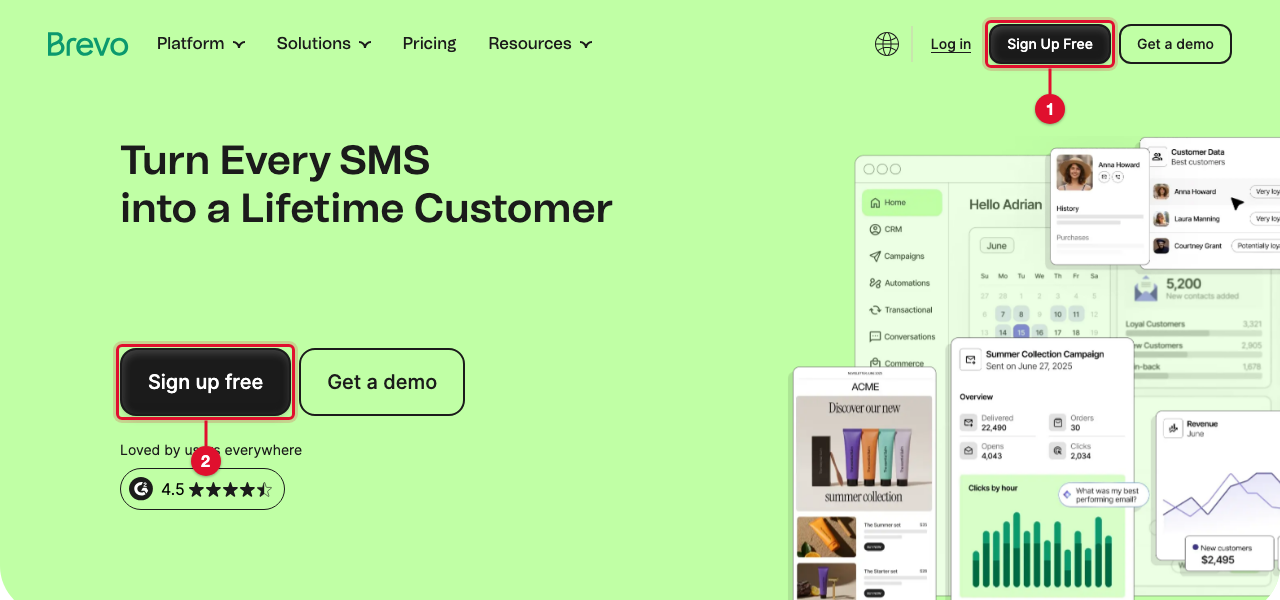
Use your business email and a password from your password manager. Brevo emails you a link to confirm the address; open it and answer the questions about your business. If Brevo asks for a phone number, use the business's.
You'll know it worked whenyou see your Brevo dashboard with your business name at the top right.
TipIf someone helps you with your email marketing, invite them as a user under Settings, then Users (or the Partner user tab on the free plan) instead of sharing your password. You can limit or remove their access at any time.
Authenticate your domain
This is what keeps your email out of spam. Do it before anything goes out.
Open Senders, domains, IPs
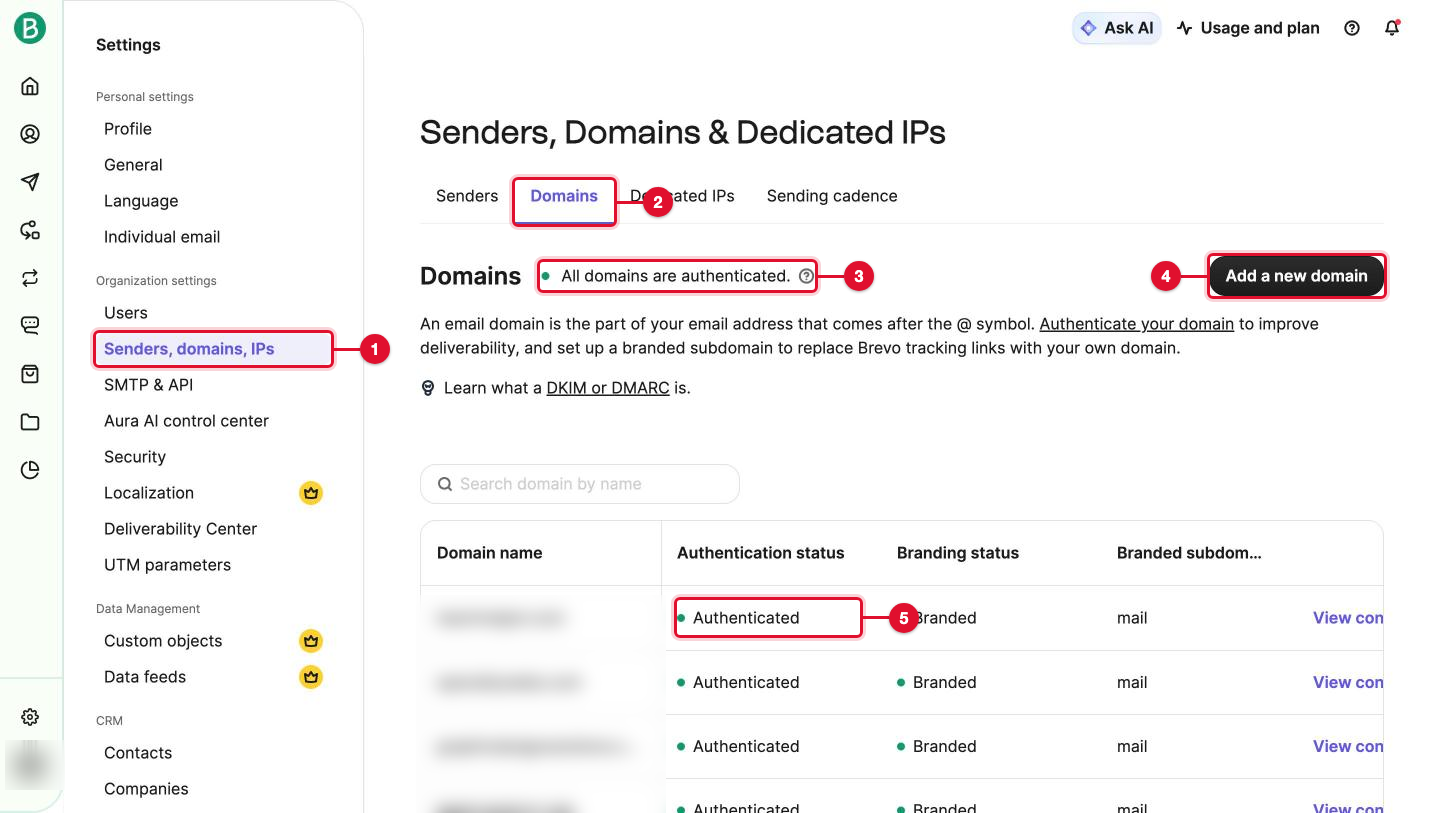
Select your account name at the top right, then Settings, then Senders, domains, IPs (number 1), then the Domains tab (number 2). Select Add a new domain (number 4).
Add Brevo's records to your DNS
Type your domain, select Add domain, then Authenticate. Brevo shows the records to add: a Brevo code (TXT), DKIM records, and a DMARC record, each with a Name, a Value and a copy button.
In another tab, open your DNS host and add each record exactly as Brevo shows it: the same Type, the Name pasted from Brevo, and the Value pasted as the content. On Cloudflare, leave Proxy status on DNS only.
ImportantA domain can have only one SPF record (the TXT that starts with
v=spf1) and one DMARC record (_dmarc). If one already exists, don't add a second. For SPF, addinclude:_spf.brevo.cominside the existing line, before~all. Keep an existing DMARC record as it is.Check the records
Back in Brevo, select the button to check the records. Later, you'll find a domain's records under View configuration on its row.
You'll know it worked wheneach record shows a green check and the domain says Authenticated (number 5 in the picture above). It can take a few minutes, sometimes up to an hour.
Add the sender
Open the Senders tab and add a sender. Name: the name your customers know. Email: an address on the domain you just authenticated. Brevo emails a confirmation to that address; open it and confirm.
You'll know it worked whenthe sender shows as verified with a check mark.
Import contacts who agreed
Only import people who agreed to hear from you: a box they ticked, a form they filled in, or a written yes. Never a bought list, a scraped list, or "everyone who ever emailed us". A bad list gets bounces and spam complaints, and Brevo can suspend the account for it.
Make a list
Open Contacts (in some accounts it's under CRM), then Lists, and create one, for example
CustomersorNewsletter sign-ups.Import the file
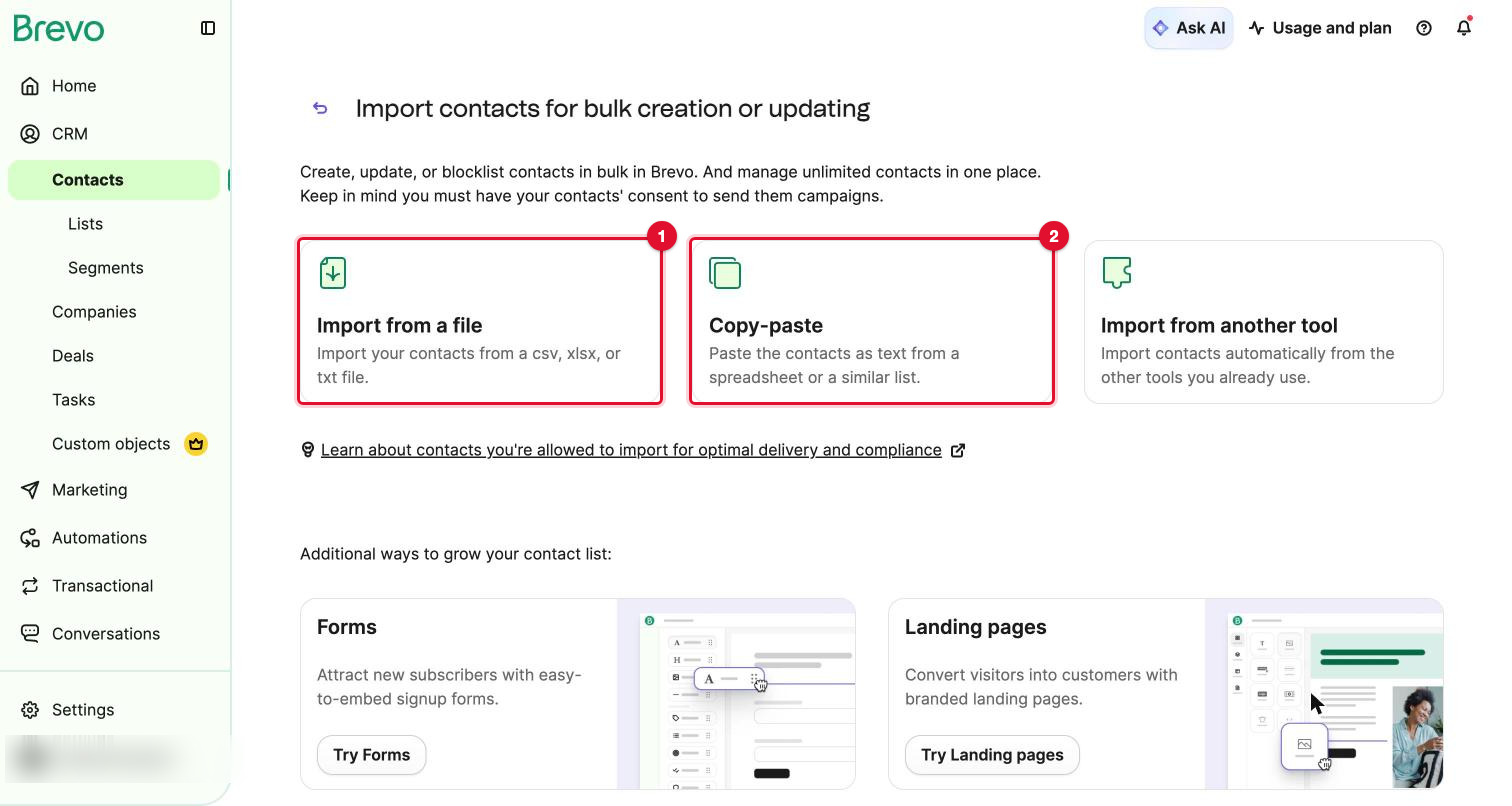
Select Import contacts, then Import from a file (number 1) and choose your CSV or Excel file. Copy-paste (number 2) works for a short list.
Match the columns
Match your columns to Brevo's: EMAIL (number 1), FIRSTNAME (number 2), and LASTNAME if you have it. Leave other columns out unless you'll use them. Under Select a list, choose the list you made and confirm.
 You'll know it worked when
the list shows the number of contacts you expected. Keep a note of where they came from.
Build the campaign
Create the campaign
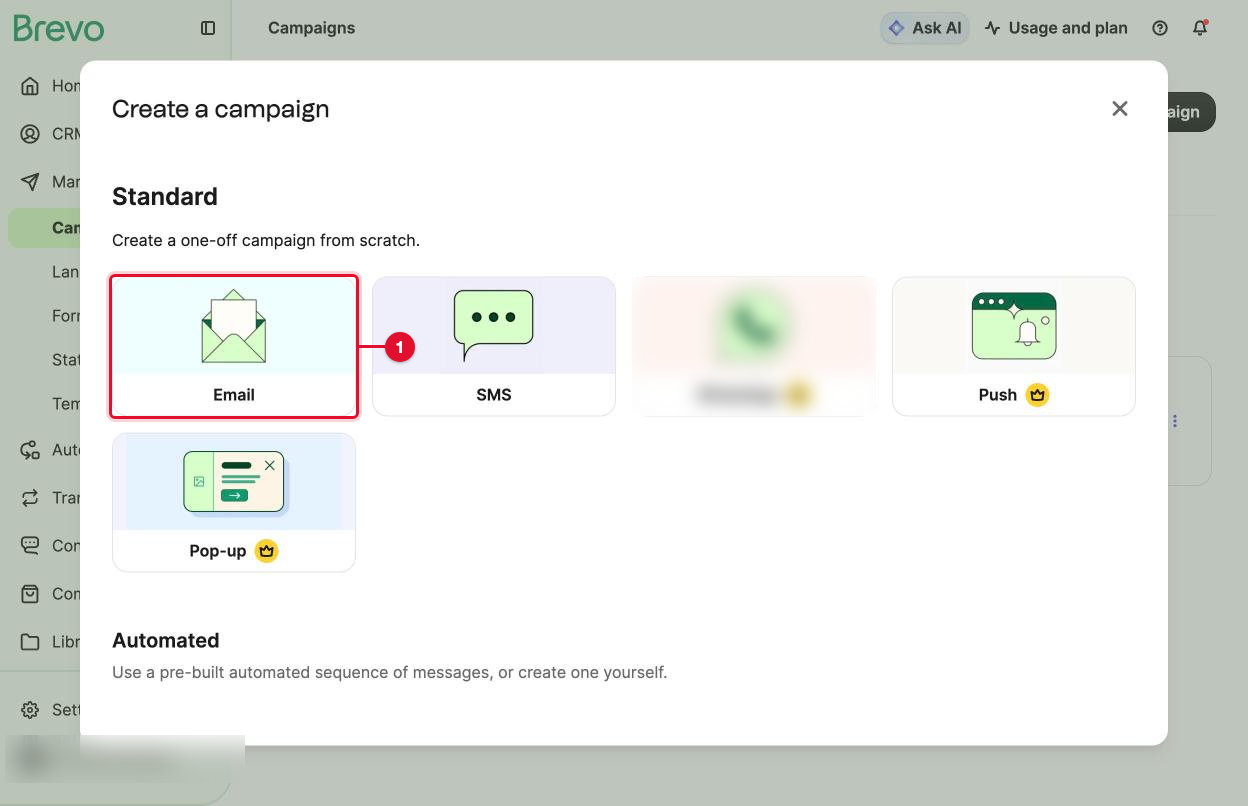
Go to Marketing, then Campaigns, and select Create campaign. Choose Email (number 1).
Keep Regular selected (number 1), type a campaign name (number 2) and select Create campaign (number 3). The name is only for you; date first sorts the list by itself, like
2026-11-25 Holiday hours.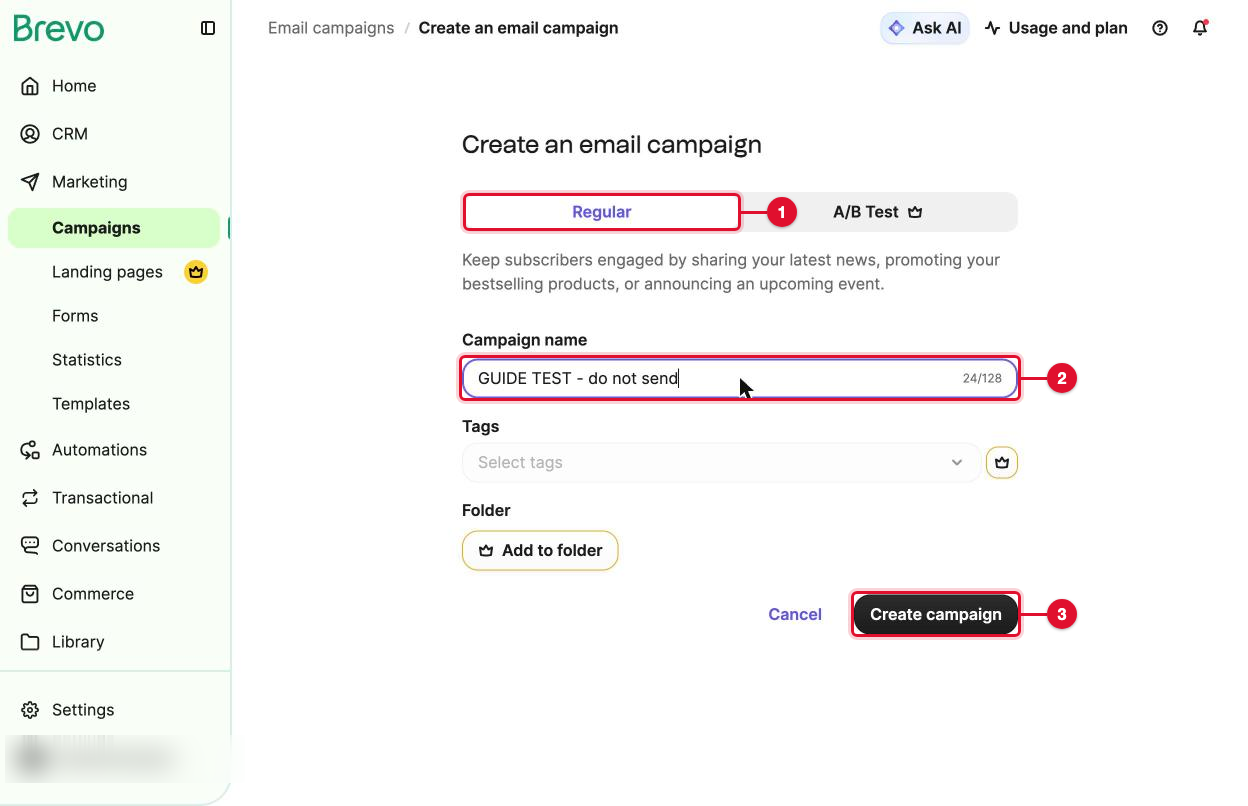
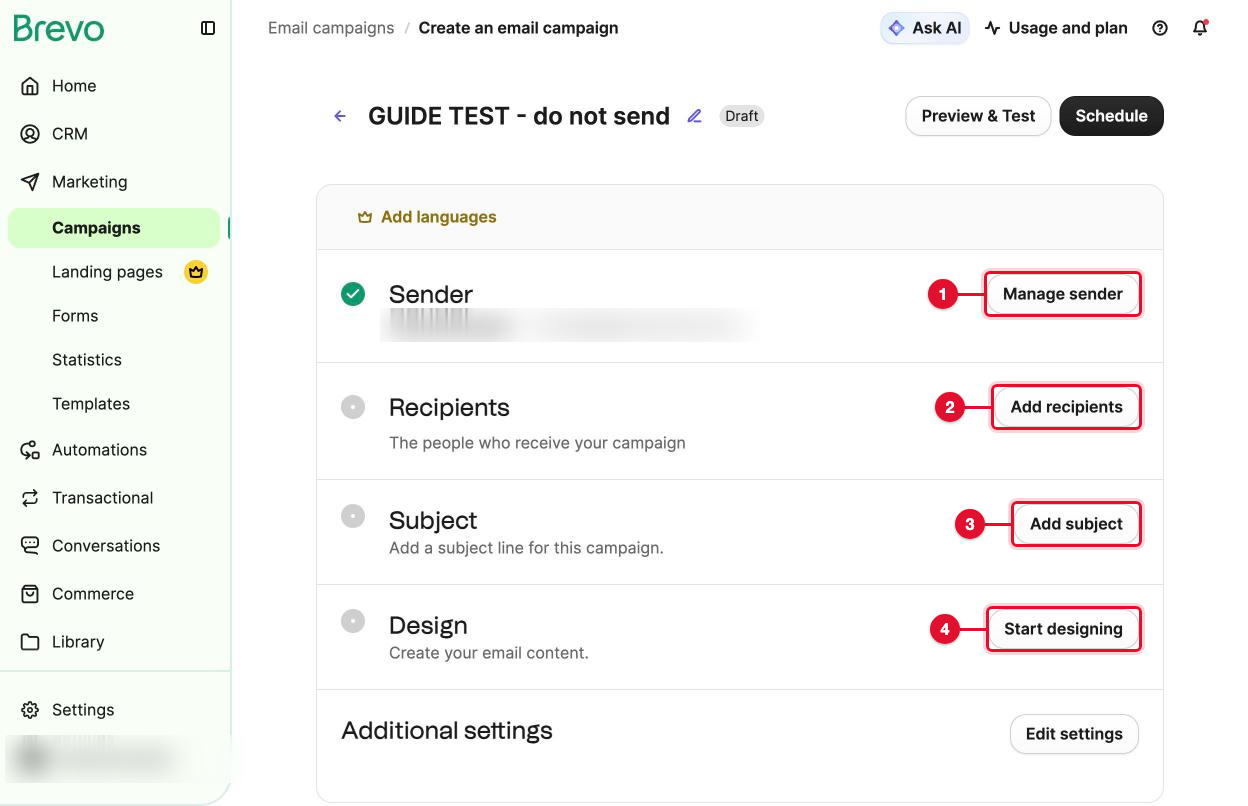
The setup page has four parts. Each gets a green check when it's done.
Sender
Select Manage sender (number 1) and choose the sender you verified. Save.
Recipients
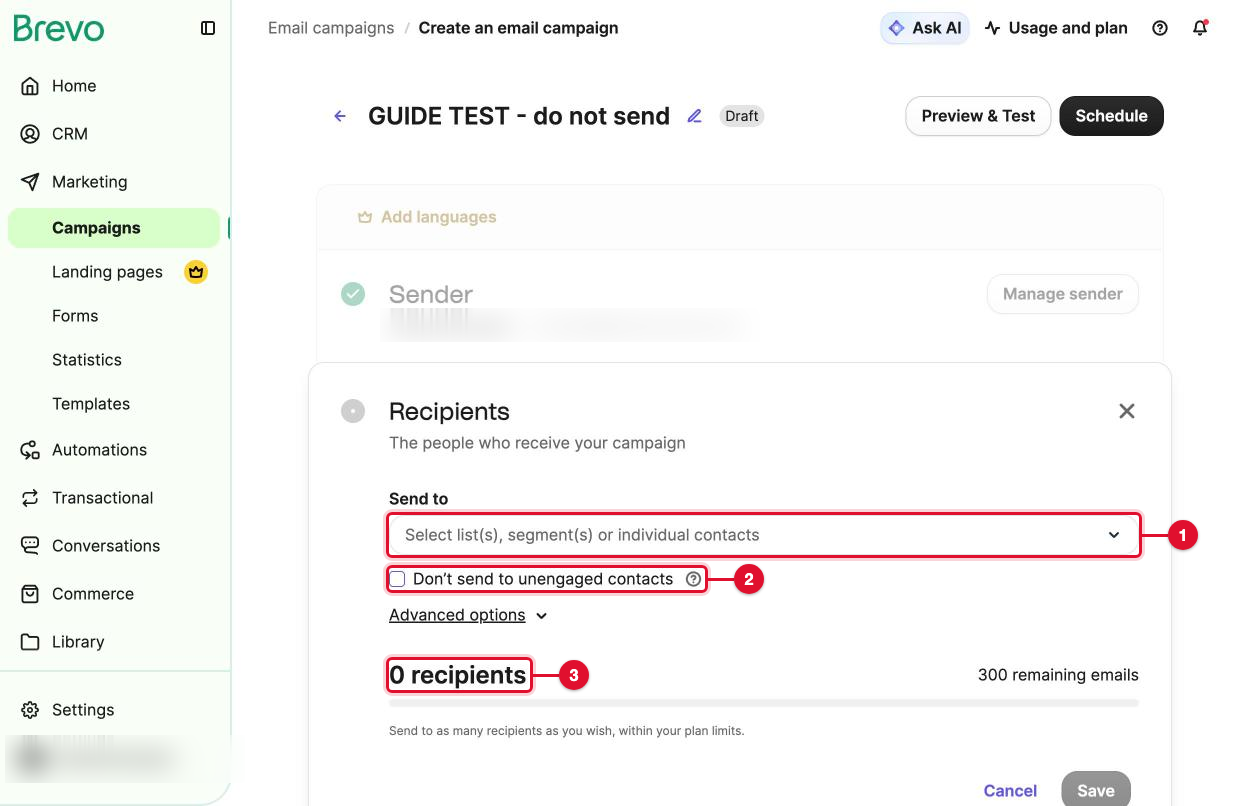
Select Add recipients (number 2). In Send to, pick your list (number 1 below). The number of people it will go to shows underneath (number 3). Ticking Don't send to unengaged contacts (number 2) skips people who haven't opened anything in a long time. Select Save.
Subject and preview text
Select Add subject. Type the Subject line, the bold line people see in their inbox, and the Preview text, the gray line after it. Say plainly what's inside. Select Save.
TipRead the subject on your phone. If the first few words don't say what the email is about, rewrite them. Avoid all capitals and a row of exclamation marks: both look like spam to people and to filters.
Design
Select Start designing. Under Create from scratch (number 1), the Drag and drop editor is the easiest way to build an email from blocks. If a designer gave you finished HTML, choose HTML custom code (number 2), paste it into the code box and select Save & Quit.
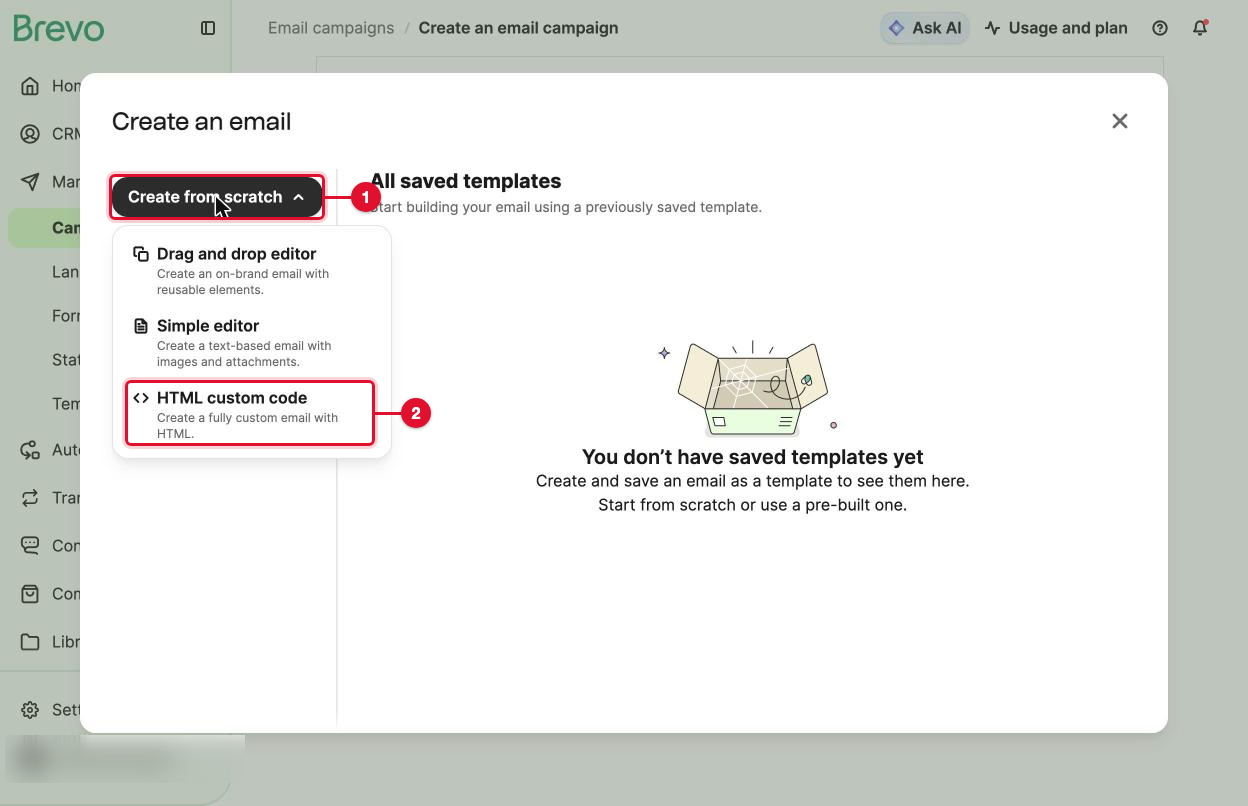
Whichever you use, the footer needs your business's mailing address and an unsubscribe link. Brevo's templates include both; check they're still there.
Test it, then schedule
Preview on a computer and a phone
Select Preview & Test. On Preview, use the computer and phone icons to see both sizes.
Send yourself a test
Open Send test email. In Recipients, choose your own addresses (add them once with Manage test list) and select Send Test. The test arrives in a minute or two with "[TEST]" in the subject. Open it on a phone and on a computer, and check it against the list below.
Schedule it
Select Schedule, then Schedule for later (number 1). Set the date (number 2) and the time and time zone (number 3), and select Schedule (number 4). Check the date format: Brevo can show the day first, so 06/11 may mean June 11 or November 6.
 You'll know it worked when
the campaign shows as Scheduled with the right date and time in Marketing, then Campaigns.
ImportantFound a mistake after scheduling? Open the campaign and suspend it, fix it, send a new test, and schedule again. Use Send now only when you're sure.
Read the results
Two or three days after the send, open Marketing, then Campaigns. Each campaign shows Recipients, Opens, Clicks, Unsubscribed and more (number 2). A campaign that hasn't gone out yet shows dashes.
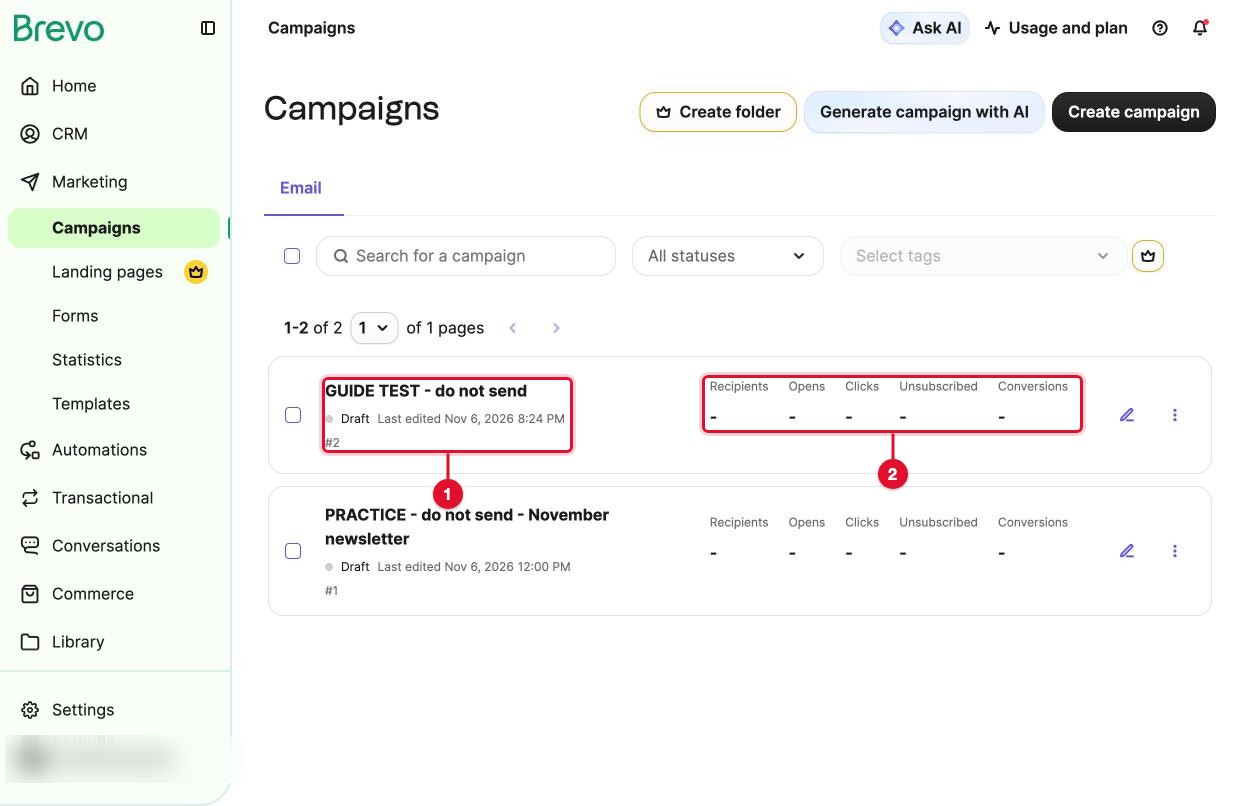
Select the campaign's name for the full report. Note delivered, clicks, unsubscribes, bounces and spam complaints, and on the Clicks tab, which link got the most clicks.
Judge a send by clicks and replies, not opens. Apple Mail opens every email by itself to load its pictures, so opens look higher than they are.
The rules for marketing email
The details depend on where your contacts live, so ask a lawyer if you're unsure. The basics that keep you on the right side almost everywhere:
- Consent first. In the European Union (GDPR) and Canada (CASL), you need people's consent before the first marketing email, not only a way out after it. Keep a record of where each contact came from.
- A truthful sender and subject. The from name says who you are; the subject says what's inside.
- Your mailing address in every marketing email. In the US, CAN-SPAM requires it.
- A working way out. Every email has an unsubscribe link, and you honor requests quickly (CAN-SPAM allows up to 10 business days; sooner is better). Someone who replies "stop" is unsubscribed too.
- A reply is not marketing. Answering someone's question, or sending a quote they asked for, is a normal email. An offer they didn't ask for is marketing.
If something goes wrong
A domain record stays red after an hour
Almost always the Name was pasted with the domain written twice, like brevo._domainkey.yourbusiness.com.yourbusiness.com. Many DNS hosts, Cloudflare included, add the domain by themselves. Fix the name so it matches Brevo's exactly.
The test email lands in spam
Check the domain says Authenticated and the sender uses that domain. Then check there's only one SPF record and it includes Brevo. Send the next test from a fresh draft.
Pictures are missing in the preview
A picture's address isn't online. Each one must start with https:// and open in a browser.
The Design part has no green check
Open Edit design, check the content isn't empty, then Save & Quit.
Brevo flags the import, or many addresses bounce
Stop sending to that list. It's usually an old or bought list. Remove the bounced addresses, and only send to people you know agreed.
Unsubscribes or spam complaints are high
Unsubscribes above about 1% of delivered, or any spam complaints, mean the list or the message is off. Check where the contacts came from, and send less often with something more useful.
Tips
- Start with a welcome email: under Automations, create one from the Welcome message template, triggered when someone joins your sign-up list.
- Send the test to a Gmail address and to an iPhone. Most people read on one or the other.
- One email, one main action. A single clear button gets more clicks than five links.
- Pick a rhythm you can keep, like once a month, and stick to it. A list that hears from you regularly complains less.
Printable checklist
Tick each box as you go. The PDF has the same list on paper.
Want us to do it for you?
We set up Brevo in your name, authenticate your domain, import your list, build the welcome emails, and write, design and send your campaigns each month with a short report. The account and the list stay yours.
Email marketing $450 a month
Official help
Web Landscapes is not affiliated with, sponsored or endorsed by Brevo, Google, Apple or Cloudflare. Product names and logos are trademarks of their owners, used here only to describe their products.
Next guideRemove outdated results from Google →