


Web Landscapes Guides Connect Facebook and Instagram
Good news: this guide is now free. Download it below, no code needed.
Connect your Facebook Page and Instagram to your website
Your website can post to your Facebook Page and Instagram, read comments and show your insights, without anyone logging in each time. This guide walks through every click of the setup at Meta, from our own run on November 16, 2026, and ends with the token your website needs.
- Time
- About an hour, plus up to 30 minutes if your accounts aren't ready yet
- You'll need
- A computer with Chrome, your personal Facebook login as an admin of your Page, and your phone nearby
- The result
- A token that lets your website post to your Page and Instagram, and nothing else, until you cancel it
Before you start
- What a token is. At the end, Meta gives you a token: a long key that lets your website open only the doors you choose on your Page and Instagram. You can cancel it at any time with Revoke tokens.
- Treat the token like a house key. Never paste it in a chat, an email or a text message, never take a screenshot of it, and never send it to anyone, including us. It goes straight from Meta into your website's settings.
- Use a computer with Chrome. Meta's business screens are hard to use on a phone. Keep your phone nearby: Meta may text you a code or ask for your password again.
- Have a business email inbox you check. Meta sends its notices about the app there.
Our screenshots show our own business, Web Landscapes, with private numbers blurred. Meta changes its screens often. If a button has moved or has a slightly different name, look for the closest match.
Get your accounts ready
Skip any step you've already done. If you have a Facebook Page, a business portfolio, and an Instagram Professional account linked to both, go to Check your Page and Instagram are in the portfolio.
Make a Facebook Page
Log in at facebook.com with your personal account (every Page is managed from a personal account, and nobody outside sees which one) and go to facebook.com/pages/create. Type your business name in Page name, pick the closest Category, and click Create Page. Add your logo as the profile picture and skip the rest with Next or Skip.
Make a Meta business portfolio
A business portfolio is your business's folder at Meta. It holds your Page, your Instagram account and the connection to your website. Go to business.facebook.com, click Create a business portfolio, type your business name, your first and last name and your business email, and click Create. Open the confirmation email if Meta sends one.
It will say "Unverified business". That's fine here: verification is only needed when an app reaches other people's accounts.
Switch Instagram to a Professional account
On your phone, in the Instagram app: tap your profile picture, then the menu (three lines), then Account type and tools and Switch to professional account. Pick a category, choose Business, and finish. A Professional dashboard button now shows on your profile. If the menu looks different, look under For professionals.
Link Instagram to your Page and portfolio
On your computer, in business.facebook.com, open Settings (the gear at the bottom left), then Accounts > Instagram accounts. Click + Add, log in with your business's Instagram account and allow access. Then click the account, choose Connect assets and connect your Facebook Page. Under Accounts > Pages, check your Page is listed; if not, use + Add > Add a Facebook Page.
Check your Page and Instagram are in the portfolio
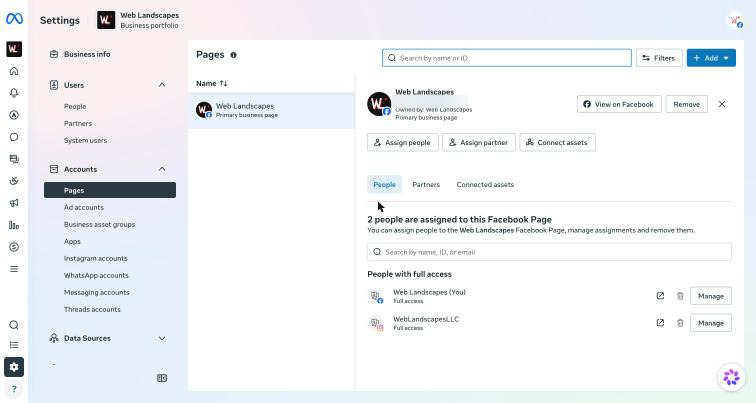
Your Page
In Settings > Accounts > Pages, click your Page. It shows "Owned by" with your business name.
Your Instagram account
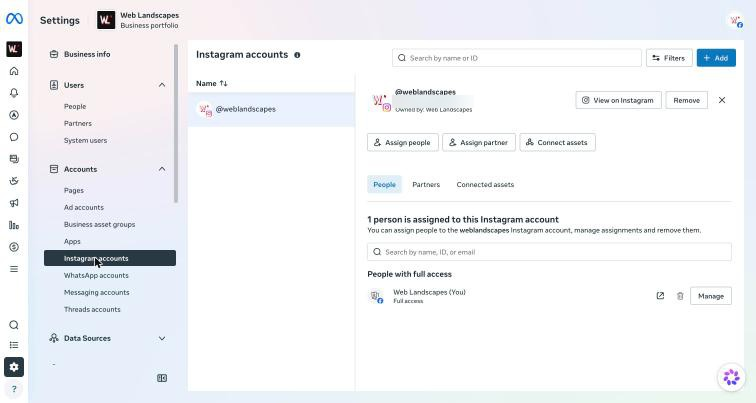
Click Instagram accounts in the same menu, then your account. If it isn't listed, go back to Link Instagram to your Page and portfolio: the next steps won't find it either.
Register as a Meta developer
This sounds technical, but it's a short form. Meta only lets registered developers create apps, and the app here is just the connection between Meta and your website. You do it once.
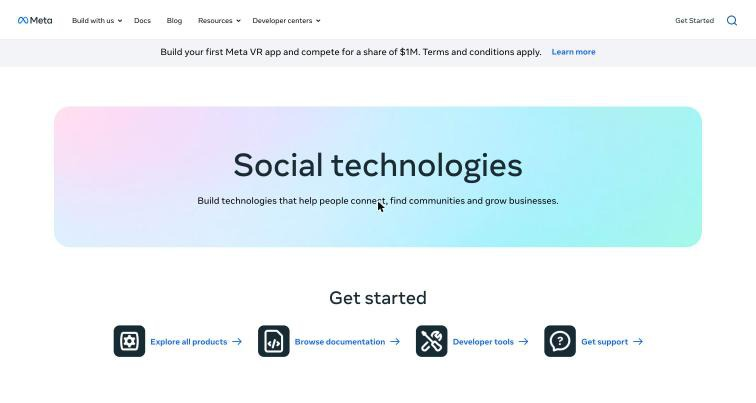
Open Meta for Developers
Go to developers.facebook.com and click Get Started in the top-right corner.
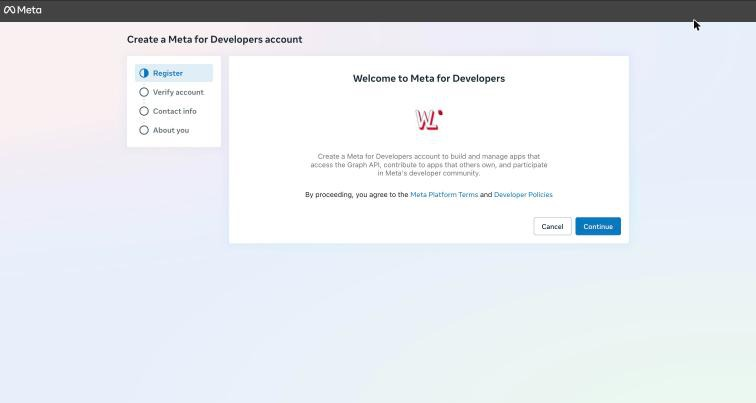
Fill in the four short steps
The screen has four steps on the left: Register, Verify account, Contact info and About you. On Register, read the terms and click Continue; clicking it means you agree to the Meta Platform Terms and Developer Policies. Meta may text a code to the phone on your Facebook account. Confirm your email, pick the role closest to yours (something like "Business owner") and finish.
Create the app
Start a new app
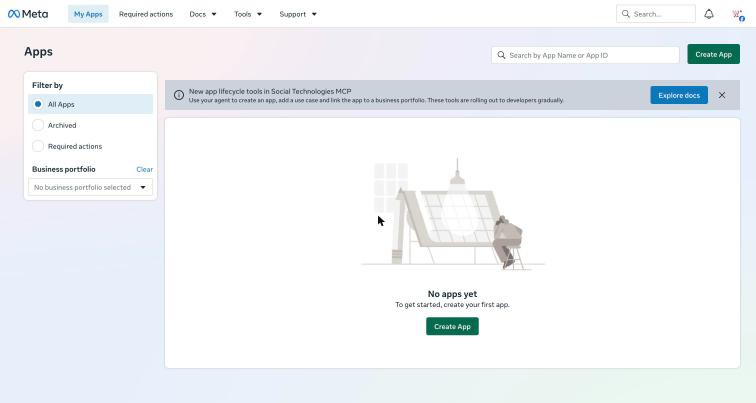
At developers.facebook.com/apps the page says No apps yet. Click Create App. If a popup says "There's a new way to create apps with Meta", click Create app.
App details
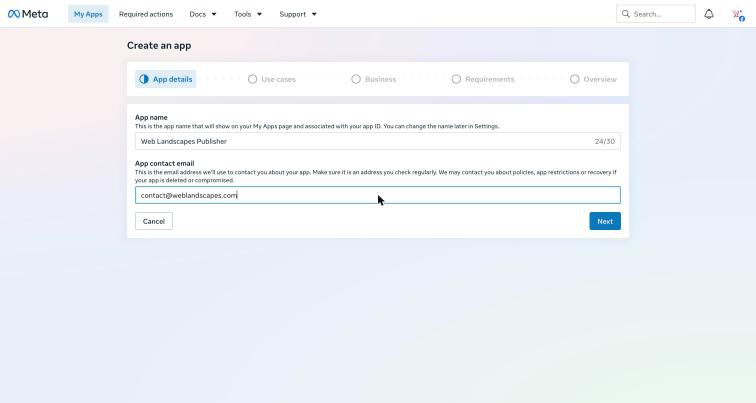
In App name, type your business name followed by the word "Publisher" (30 characters at most; ours is "Web Landscapes Publisher"). In App contact email, replace the email Meta fills in with a business inbox you check. Click Next.
Pick the two use cases
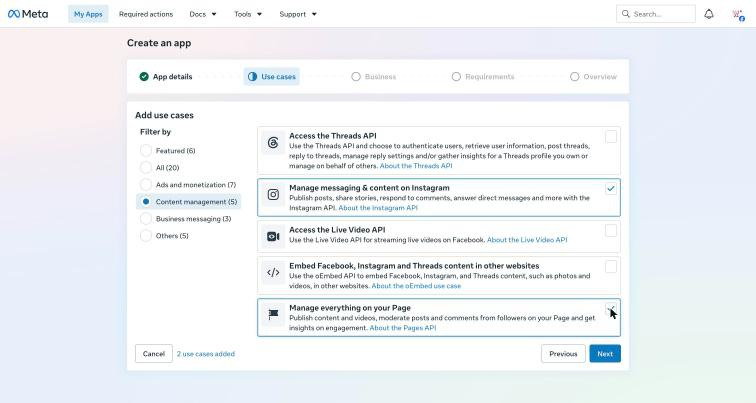
On the left, under Filter by, click Content management (5). Tick Manage messaging & content on Instagram and Manage everything on your Page. It says "2 use cases added". Leave the rest unticked and click Next.
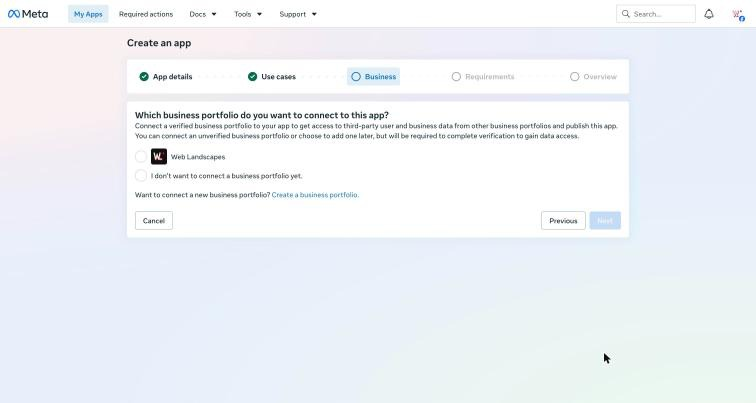
Connect your business portfolio
Click the round button next to your business portfolio. "Unverified business" is fine for your own Page and Instagram. Click Next. The Requirements step should say No requirements identified, which means Meta doesn't need to review anything. Click Next.
Create it
On Overview, check the name, the email, the use cases and your business, scroll down and click Create app. By proceeding you agree to the Meta Platform Terms. Meta asks for your Facebook password again: type it.
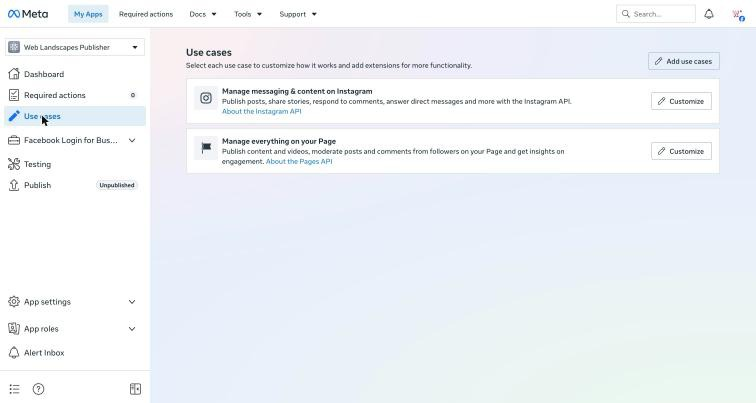
 You'll know it worked when
the app's dashboard opens with both use cases under Use cases. It says Unpublished, and that's correct: it never needs publishing for your own accounts. You don't need to customize anything.
Make a system user
A system user is a robot account inside your business portfolio. Your website acts as this robot, so it never depends on anyone's personal login and keeps working if someone leaves your team.
Add a system user
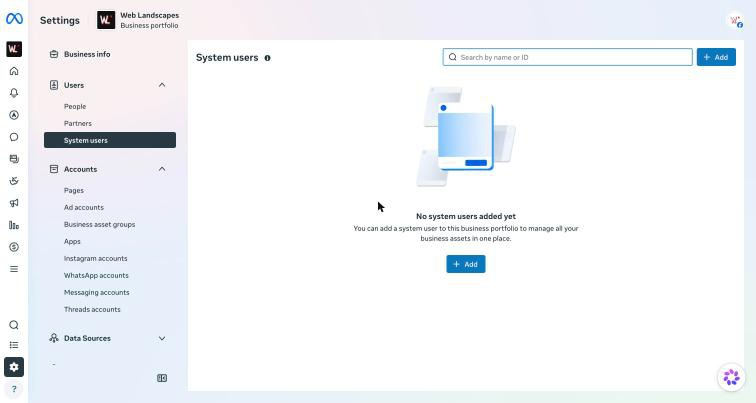
Back in business.facebook.com, go to Settings > Users > System users and click + Add.
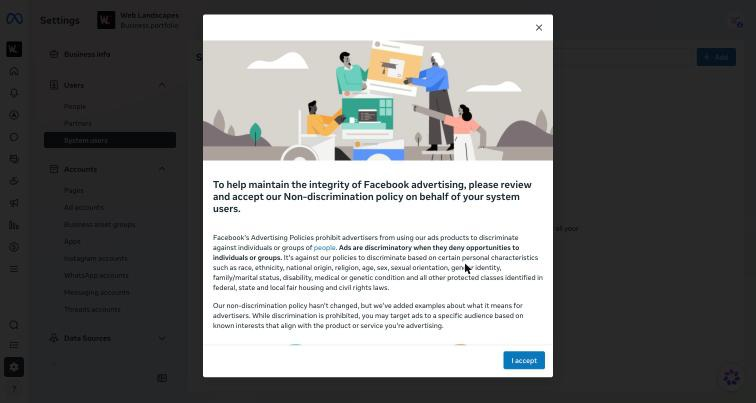
The first time, Meta asks you to accept its Non-discrimination policy on behalf of your system users. Read it and click I accept.
Name it and keep the Employee role
In System user name, type
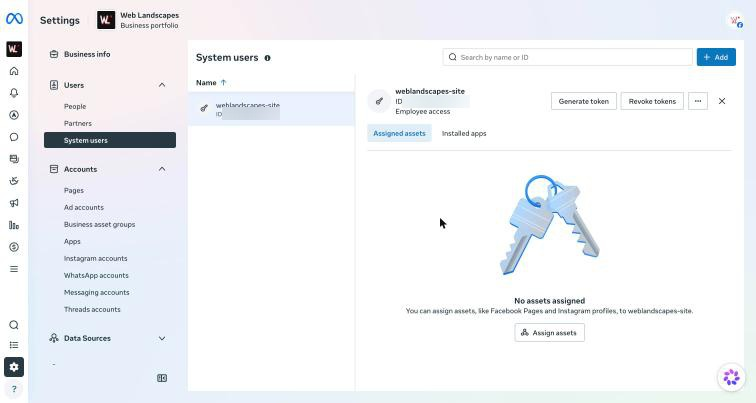
website. Leave System user role on Employee: it gives the least access, which is all your website needs. Click Create system user. You'll know it worked when
the system user opens on the right with Generate token, Revoke tokens and "No assets assigned".
Give the system user your Page, Instagram and app
This is where your accounts get connected.
Your Page
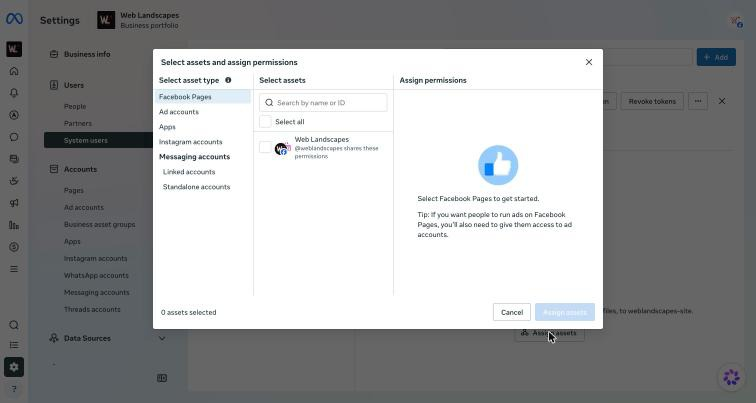
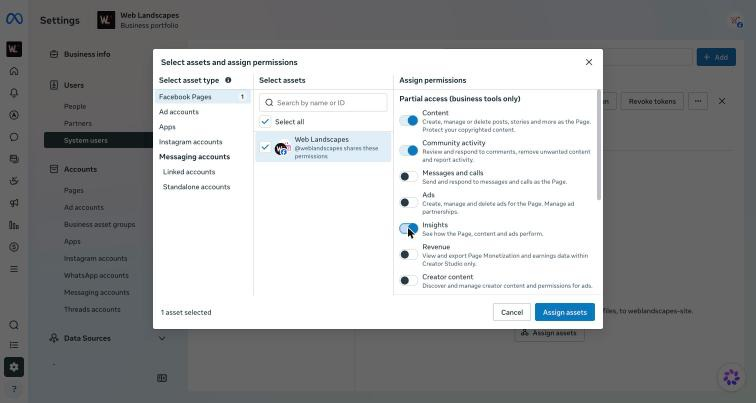
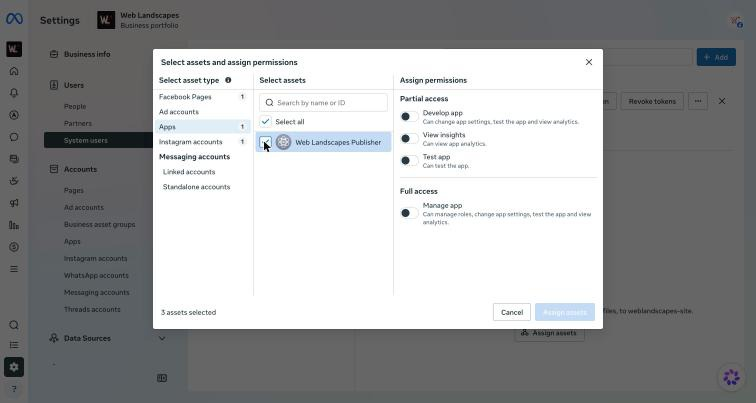
Click Assign assets. The window opens on Facebook Pages. Tick your Page, then turn on three switches: Content, Community activity and Insights. Leave Messages and calls, Ads, Revenue and Creator content off.
Your Instagram account
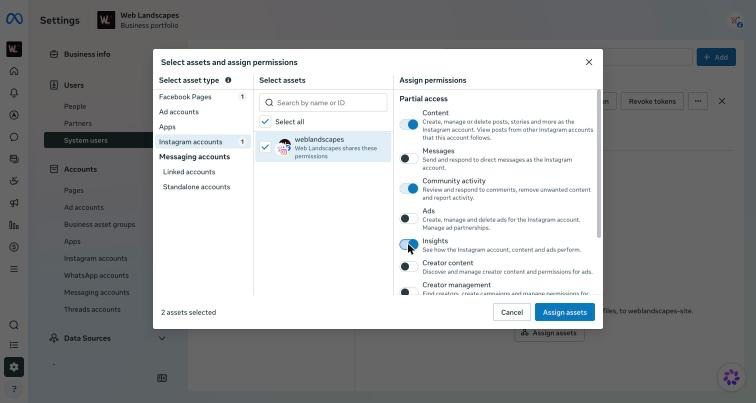
On the left, click Instagram accounts and tick your account. Turn on Content, Community activity and Insights. Leave Messages, Ads, Creator content and Creator management off.
Your app
On the left, click Apps, tick your app and turn on Develop app. Meta adds View insights and Test app by itself. Leave Manage app off. The bottom-left corner says "3 assets selected". Click Assign assets.
Reload to see them
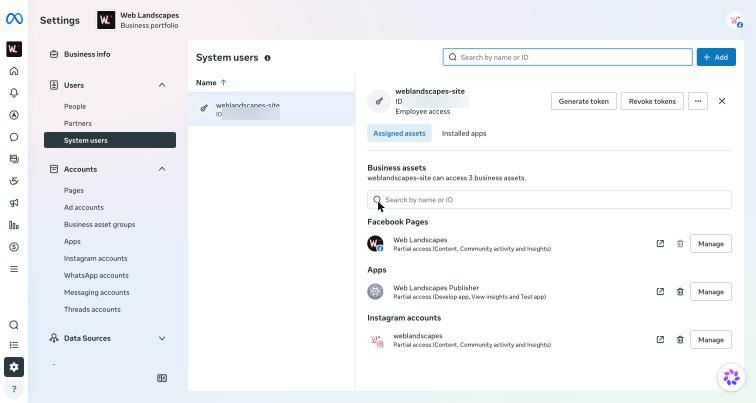
A window says "Assets assigned". Click Done. Behind it, the panel still says "No assets assigned": it doesn't refresh on its own. Reload the page and click the system user again.
 You'll know it worked when
under Assigned assets you see your Page, your app and your Instagram account, each with "Partial access" and the permissions you chose.
Make the token
There's no screenshot here on purpose: the screen shows the token itself, and a token is never photographed. Before you start, open your website's settings in another tab, so you can paste the token straight away. It's shown once, and copying anything else afterwards erases it from your clipboard.
Generate it
On the system user, click Generate token. Choose your app and click Next. In Set expiration, choose Never (a 60-day token would stop working after two months) and click Next.
Tick exactly these 10 permissions
Use the search box at the top of the list if it's long:
pages_show_listpages_read_engagementpages_manage_postspages_manage_engagementread_insightsinstagram_basicinstagram_content_publishinstagram_manage_commentsinstagram_manage_insightsbusiness_management
Click Generate token. Meta may ask for your Facebook password again.
Copy it
The token appears: a long line of letters and numbers that starts with EAA. Don't select it by hand. Click Copy and go straight to the next step. Leave the Meta window open until your website confirms the connection, so you can click Copy again if you need to.
Paste the token into your website
If we built your website
- In your website's admin, open Settings > Social.
- Under Paste your Meta token, click the Token box and paste (Command+V on a Mac, Ctrl+V on Windows). Leave App secret (optional) empty.
- Click Save token. If your token reaches more than one Page, a Page list appears: pick the Page to post to and click Save token again.
- Click Check connection.
You'll know it worked whenit says "Connected as" followed by your Page's name and your Instagram account. Now close the Meta token window with Done.
Your website never shows the token again, only the day it was saved. If it says "That does not look like a Meta token", something else was copied after the token: go back to Meta, click Copy and paste again.
If someone else built it
Ask them where their site takes a Meta token, and paste it there yourself, in the site's own settings. Never send it to them by email or chat.
If something goes wrong
"Create a new app ID" is greyed out
If you tried to make the app from Business settings > Apps > Add, that option stays grey until you register at developers.facebook.com. Do Register as a Meta developer first.
Meta keeps asking for your password
That's normal at Create app and often at Generate token. If it repeats in a loop, log out of Facebook, log back in and start the step again.
Meta texts you a code
Registration and some security checks send a code to the phone on your Facebook account. If none arrives in a couple of minutes, ask Meta to resend it and check that the number on your Facebook account is current.
Your Instagram account isn't listed
It only appears if it's a Professional account linked to your Page and added to your business portfolio. Go back to Get your accounts ready.
"No assets assigned" after you clicked Done
The panel doesn't refresh on its own. Reload the page and click the system user again.
What you pasted doesn't start with EAA
Something else was copied after the token, or you selected part of the page by hand. Go back to Meta, click Copy and paste again. If you already closed the Meta window, make a new token; you can cancel the old ones first with Revoke tokens.
Your website says Meta is connected, but nothing posts
The token is saved but may be wrong or cancelled. Click Check connection. If it fails, make a new token with the 10 permissions and save it again.
A permission is missing from the token's list
Check that your app has both use cases and that your Page and Instagram account are assigned to the system user with Content, Community activity and Insights on.
Cancel your website's access
On the system user, click Revoke tokens. Every token from that system user stops working at once, and your website can't post until you save a new one. To remove access for good, also remove your Page and Instagram account from the system user's Assigned assets.
Printable checklist
Tick each box as you go. The PDF has the same list on paper.
Want us to do it for you?
We do it with you on a short video call. You click Meta's agreements and type your own password; we tell you every click and check the connection at the end. Your accounts stay in your name.
The full guide as a PDF
The same steps as a printable PDF in English and Spanish, with every screenshot in order and a one-page checklist.
Free, no sign-up. The files are in English.
Official help
Web Landscapes is not affiliated with, sponsored or endorsed by Meta, Facebook or Instagram. Product names and logos are trademarks of their owners, used here only to describe their products.
Next guideClaim your business in ChatGPT →