


Web Landscapes Guides Claim your business in ChatGPT
Good news: this guide is now free. Download it below, no code needed.
Claim your business in ChatGPT
OpenAI opened Business Hub on November 10, 2026. It lets a business claim its listing in ChatGPT, or add one, and manage what ChatGPT says about it. We claimed ours on November 14 and wrote down every screen. This is what the claim asks for, in order, and what you agree to by starting it.
- Time
- About 35 minutes to reach the draft, closer to 10 if you prepare, then OpenAI's review
- You'll need
- A ChatGPT account you will keep, access to your domain's DNS, your business registration details and a photo ID
- The result
- A claim sent to OpenAI for review, with your category, description and contact details in it
Before you start
Everything in this guide was checked on November 14, 2026, on a free ChatGPT account in the United States, for a business that works through its website. Business Hub is new and it changes often, so a screen may look different by the time you read this. Where we repeat OpenAI's help page or its terms instead of our own run, we say so.
Have these ready and the claim takes one sitting:
- A ChatGPT account the business will keep for years. Whoever signs in is the person who accepts the terms and manages the profile. A free account worked for us.
- Access to the DNS settings of your domain, or someone on the phone who has it. For a website business, a DNS record was the only way we were offered to verify.
- Your business category in two or three words, and a description of 300 characters or less.
- Your business phone, with the phone in your hand, and your business email open in another tab. Both get a code.
- Your legal business name exactly as registered, the registration or tax number, the physical address and the registered address.
- A government-issued photo ID and a phone with a camera.
By searching for your business in Business Hub you accept OpenAI's Businesses in ChatGPT Terms, and when the identity check is approved the profile is published by itself. OpenAI's help page says a published profile can't be deleted, unpublished or hidden. Read Before you agree to the terms first.
Who can claim a business in ChatGPT
OpenAI's help page says the person claiming has to be the owner or someone authorized to represent the business. You don't need an advertising account or an enterprise contract. It also says availability depends on the business's location and type, and it gives no list of countries or types.
| Your business | What we know on November 14, 2026 |
|---|---|
| Sells or works through a website | You can search for it, and add it if it isn't listed. This is the path we took, and the one this guide covers. |
| A shop, restaurant or office that customers visit | The help page says local stores and restaurants can currently claim only a listing that already exists in the United States. We have not run this path. Your Google Business Profile is a separate listing and none of this changes it. |
| A service business with no storefront | There was no separate choice for services in our run. We are a service business, we chose Through a website, and the claim went through to a draft. |
Claiming does not promise more customers. The help page says claiming doesn't guarantee more visibility, and that advertising doesn't change ChatGPT's own answers. What you get is the chance to give ChatGPT correct details about your business, and later some numbers about how often your website is mentioned.
Before you agree to the terms
The first screen of Business Hub says: "By continuing, you accept OpenAI's Businesses in ChatGPT Terms." There is no separate box to tick. We read the terms dated November 9, 2026. These are the points a small business should know before starting. They are our notes in plain words, not legal advice.
- Basic details stay licensed for good. The license you give OpenAI to show basic business information you submit (name, address, contact details, category, hours, website) is permanent and can't be taken back. Submit only what can stay public forever. If you work from home, don't give your home address as an address to show.
- A published profile stays. The help page says approval of the identity check publishes a new profile automatically, with no separate publish step, and that support can't delete, unpublish or hide a published profile. Only a draft can be deleted.
- You give up certain claims against OpenAI. The terms include a covenant not to sue and a release. It covers the data you submit and also the content on websites you or your affiliates own. In plain words, you give up claims over OpenAI's use of your website content.
- OpenAI's assistant may call you. The terms say that by using Business Hub you agree the AI assistant may make calls to your business on behalf of its users. The terms include a link to opt out.
- Claiming is not exclusive control. Listings exist whether or not you claim them, and OpenAI may add to, edit or replace your information from other sources.
- You have to keep it correct. You agree to keep the information current and fix errors promptly.
- The person who accepts must be allowed to. Whoever continues past that first screen states that they have the authority to bind the business.
If any of this is a problem for your business, stop before the search screen.
How to add your business to ChatGPT
Open Business Hub and search for your business
Sign in to ChatGPT with the account that will manage the business and go to chatgpt.com/business-hub. The page has one field, Search business. Type your business name.
The results list businesses by name with an address or a website. The first line of the list is always Create followed by what you typed. Search a few ways before you create anything: the name, the legal name and the website address. We found nothing of ours under three searches, only businesses with similar names in other states, so we chose Create.
ImportantIf your business is already in the list, select it instead of creating a second one. We have not run that path, so the screens after it may differ from the ones below.
Start the claim
A dialog titled Add your business to ChatGPT lists three things the profile is for. Select Get started.
Say how customers reach you
The next screen asks how customers usually interact with your business and gives two choices:
- At a physical location: customers visit a store, restaurant, office or other location.
- Through a website: customers buy from your website or marketplace.
We chose Through a website. The rest of this guide follows that choice.
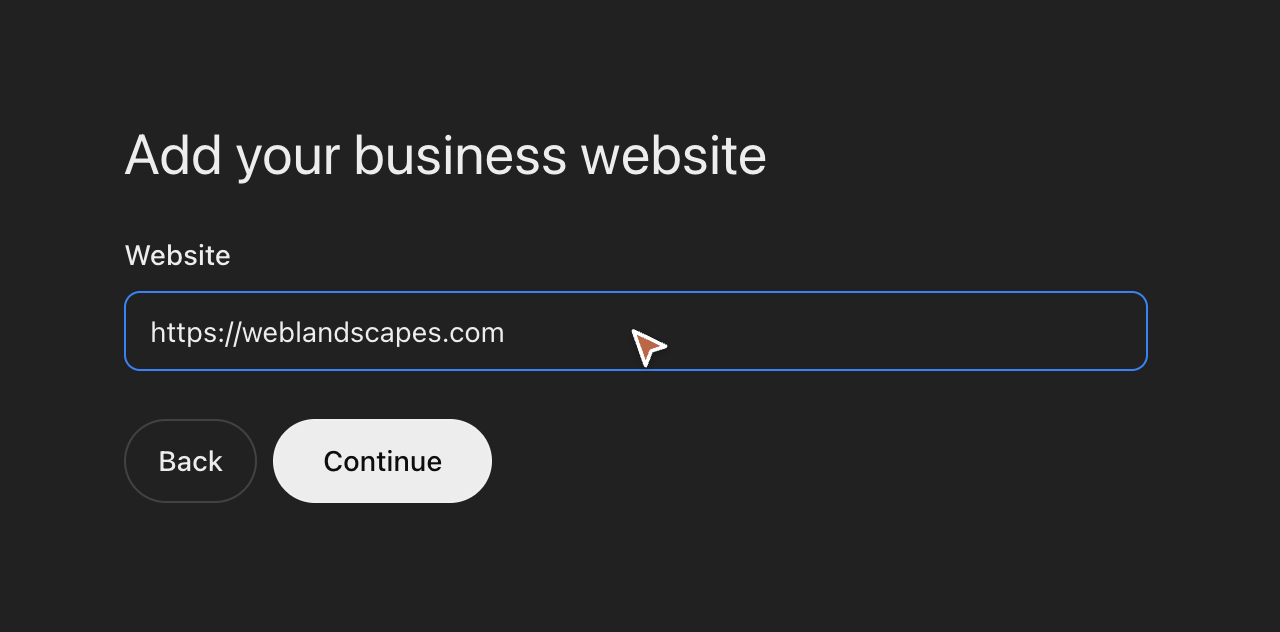
Add your website
Type your website address in the one field, Website, and select Continue. A card on the right builds a preview of the profile as you go: the name, then the category, contact details, delivery policy and return policy as you add them.
Verify your website with a TXT record
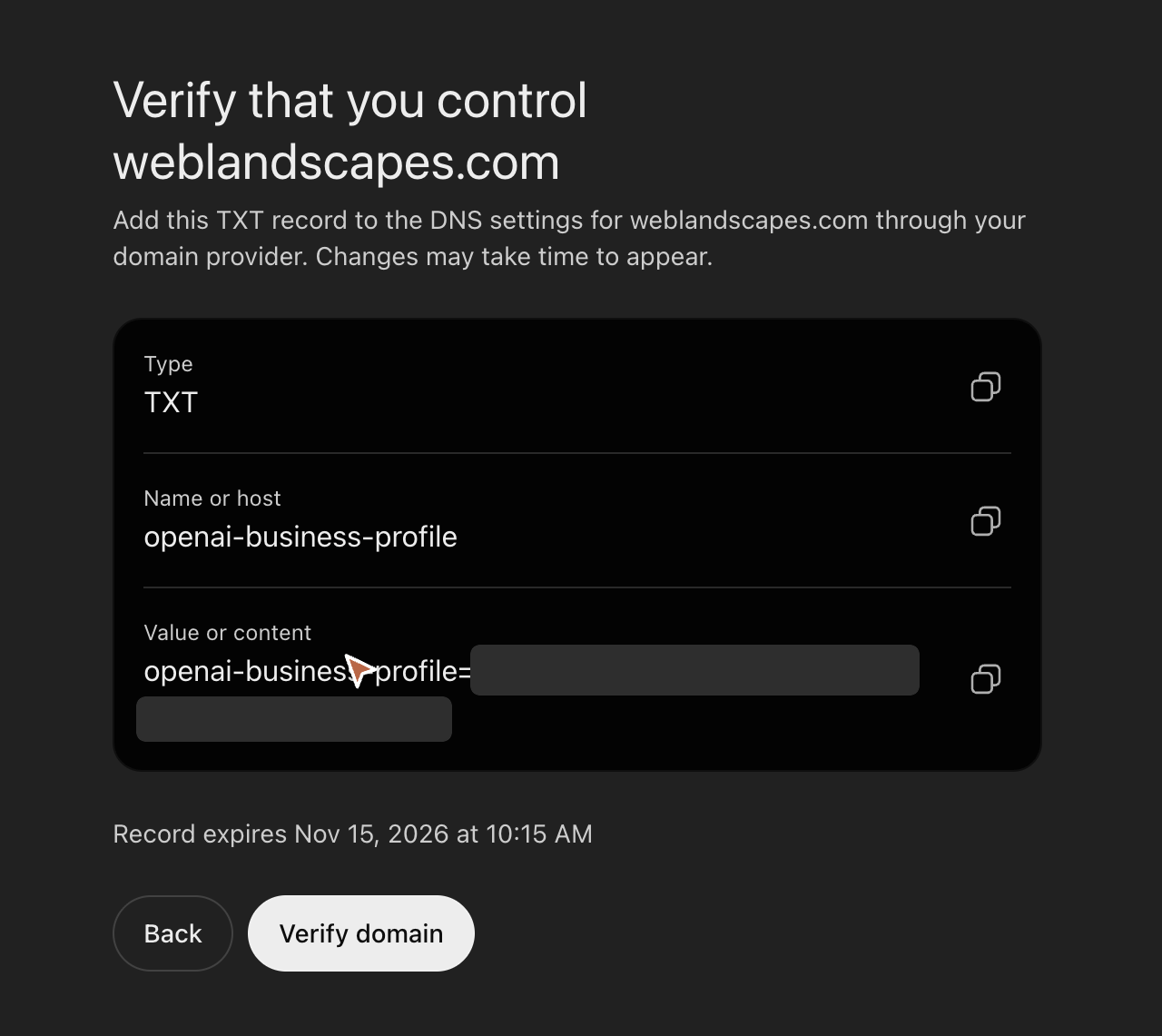
After a few seconds ChatGPT shows Verify that you control and your domain. For our website business this was the only way to verify. The help page lists four ways (a code to the business phone, a code to the business email, a TXT record on the domain, or a connected online store) and says the ones offered vary by business.
A TXT record is a short line of text stored with your domain's settings. Only someone who controls the domain can add one, which is why it works as proof. Adding it does not change your website or your email.
Copy the three values from ChatGPT
The screen gives three rows, each with a copy button:
- Type:
TXT - Name or host:
openai-business-profile - Value or content:
openai-business-profile=followed by a long code that is unique to your claim
Under them is the line Record expires, with a date and time 24 hours after the screen was made. Leave this tab open.
- Type:
Find where your domain's DNS is managed
DNS is managed wherever your domain's nameservers point. For most small businesses that is the company you bought the domain from. If someone moved your DNS to another service, it is there instead. Sign in and look for a page called DNS, DNS records, Zone editor or Advanced DNS.
If you don't know who manages it, ask whoever set up your website or your email. They can add the record in a few minutes if you send them the three values. If we look after your domain, ask us.
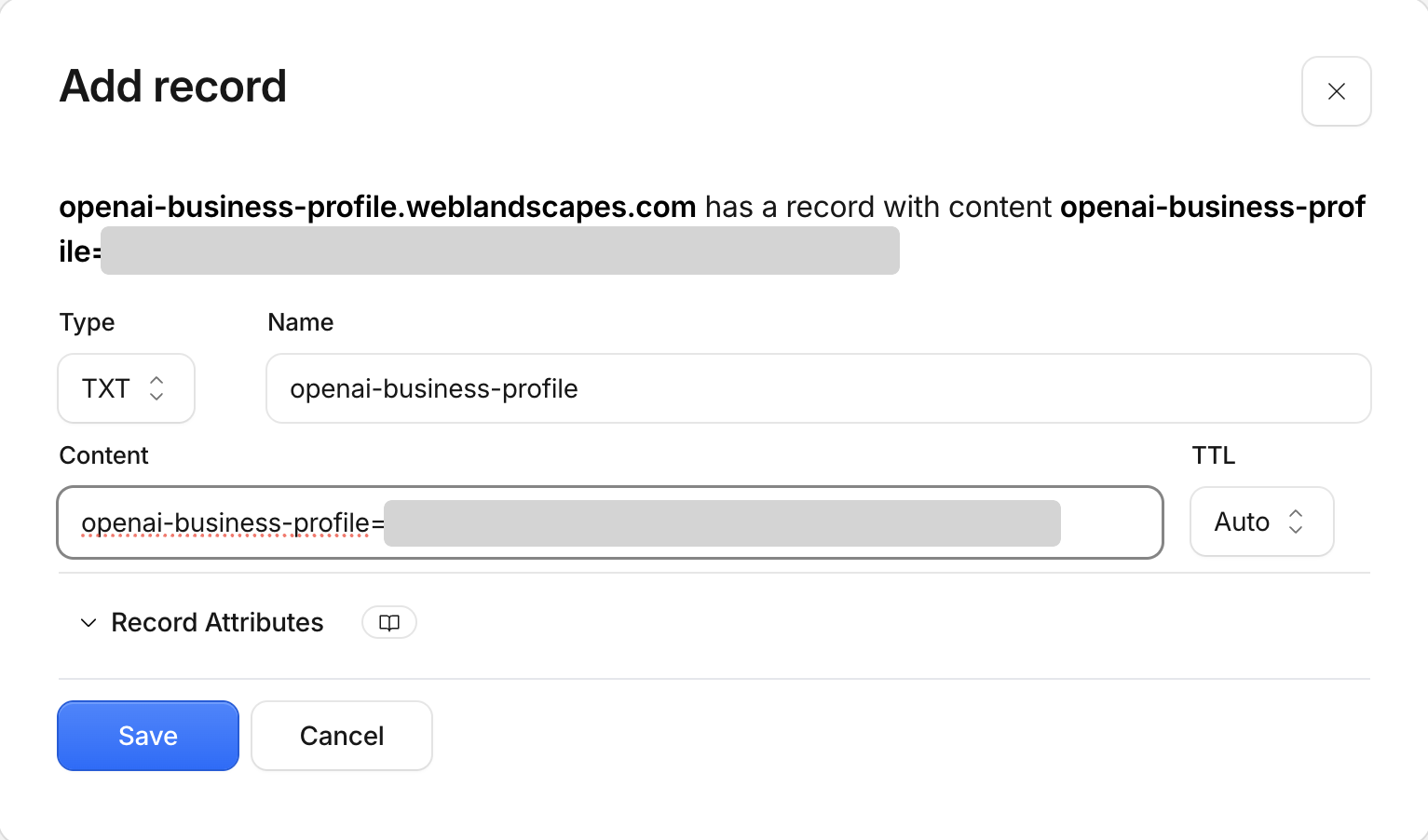
Add the record
Choose to add a record, then fill it in:
- Type:
TXT. - Name (some providers call it Host):
openai-business-profileand nothing else. Most providers add your domain to the end by themselves, so the full name becomesopenai-business-profile.yourdomain.com. - Content (or Value): paste the value exactly as you copied it, from
openai-business-profile=to the last character. - TTL: leave it on automatic or the default.
Save the record.
Four mistakes to avoid:
- Typing the full
openai-business-profile.yourdomain.cominto Name at a provider that adds the domain itself. That createsopenai-business-profile.yourdomain.com.yourdomain.com. - Adding quote marks around the value by hand.
- Putting the record on the root of the domain (
@) instead of the name ChatGPT gave you. - Starting the claim a second time. That makes a new code, so the old record no longer matches.
- Type:
Select Verify domain
Go back to the ChatGPT tab and select Verify domain. Ours passed about 8 seconds after the record was visible from outside. The screen itself says changes may take time to appear, so if it fails, wait a few minutes and try again before changing anything.
You'll know it worked whenthere is no success message. ChatGPT moves straight to the next screen, which asks for your category.
Category, description and contact details
Choose one business category
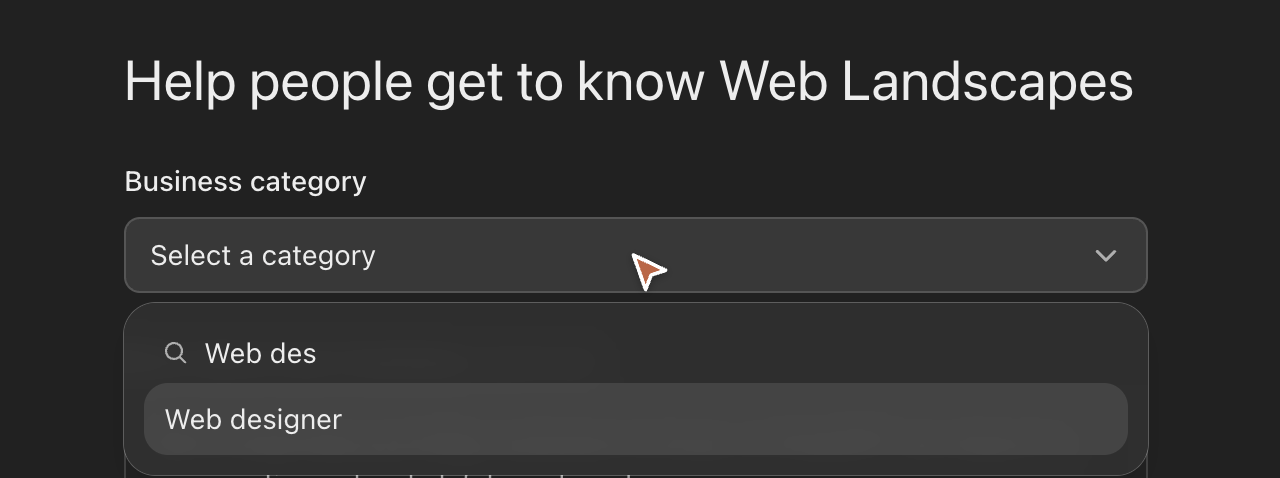
Open Business category and type a word to search the list. The list had 848 categories when we looked, and you choose one. Pick the one a customer would use to describe you, not the broadest one. We chose "Web designer" over nearby ones such as "Marketing agency" and "Software company".
Write the description in 300 characters
The field is More about your business (optional). Its hint says ChatGPT can share what you write in conversations when it is helpful or relevant. The limit is 300 characters, spaces included. The screen shows no counter: typing just stops. Write it somewhere that counts characters first, then paste it.
What fit in ours: who we are and where, what we do, a starting price, the languages, and how clients work with us.
 Tip
Say only things your website also says. The terms let OpenAI add to or replace your information from other sources, so keep the two in agreement.
Add a phone number and an email
Both fields are marked optional. Use the business line and the business address you already publish on your website. The preview card shows both as soon as you type them.
 Important
These are details you are asking OpenAI to show, under the permanent license described above. Don't use a personal cell number or a personal email address.
Pass the two code checks
Optional does not mean unchecked. Because we gave a phone number, the next screen asked how to receive a verification code: Text message or Phone call (an automated call). Select Get code and type the six digits.
Right after, a second screen asked for a six-digit code sent to the email address. It has a Resend code link that becomes active after a short countdown, and a Change email button if you mistyped the address.
So both contacts are proven, phone first, then email. We don't know yet whether leaving the phone blank skips its check.
Delivery and return questions for a service business
The last two screens are written for shops, and both are required. You can't continue without choosing.
Answer the delivery question
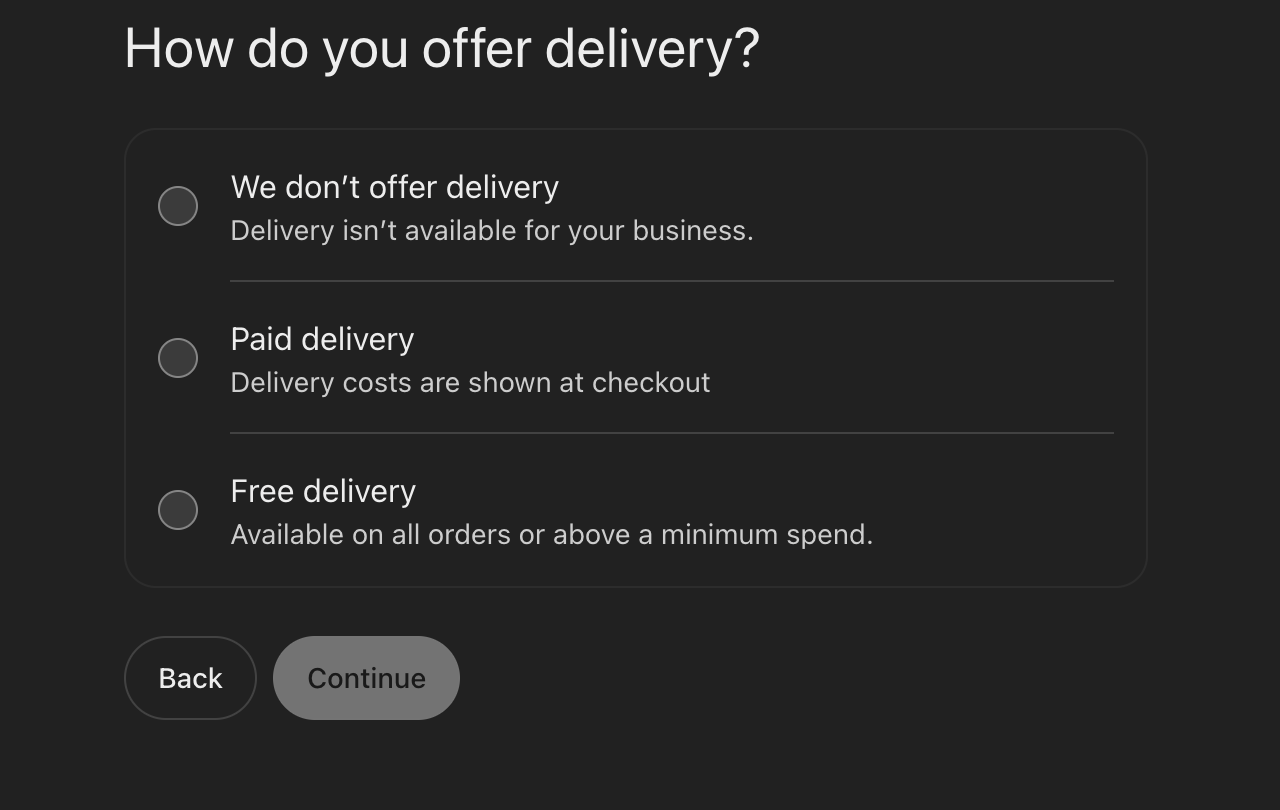
How do you offer delivery? has three choices:
- We don't offer delivery: delivery isn't available for your business.
- Paid delivery: delivery costs are shown at checkout.
- Free delivery: available on all orders or above a minimum spend.
If you sell services, or anything that is never shipped, choose We don't offer delivery. The other two describe shipping costs, and a profile that promises free delivery for a service says something untrue. The preview card then reads "Delivery unavailable".
Answer the return question and submit
What is your return policy? also has three choices:
- Returns not accepted: you don't accept standard returns.
- Returns accepted, with fees: customers pay return shipping or other return fees.
- Free returns: no return shipping or other return fees.
A service has no goods to send back, so we chose Returns not accepted. That answer is about returning products. It does not replace your refund or cancellation terms, which stay on your own website. If you do sell physical products, choose the answer that matches the policy published on your site, word for word.
The button on this screen is Submit.
 You'll know it worked when
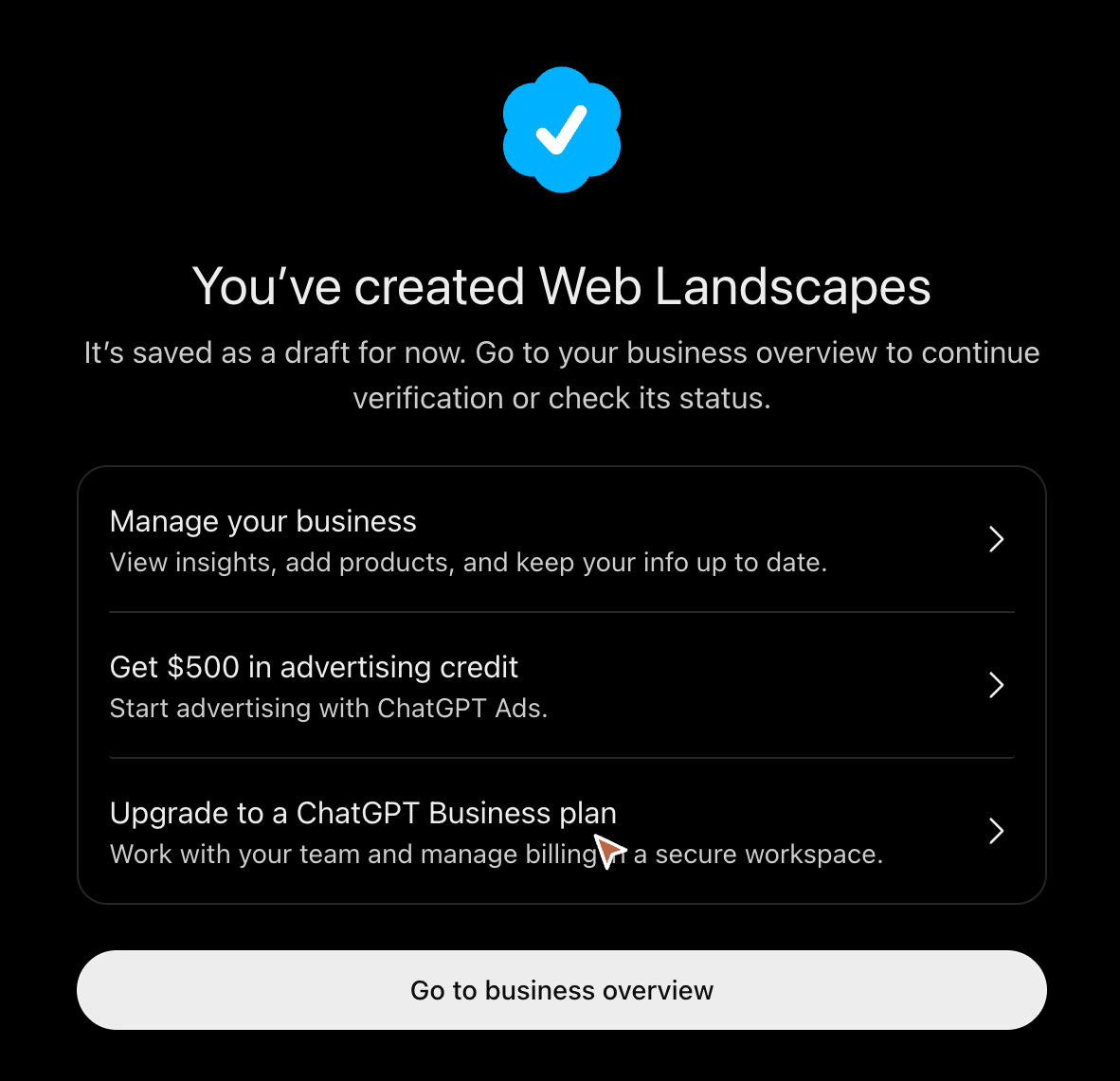
a blue check appears with "You've created" and your business name, and the line "It's saved as a draft for now."
The draft and what stays locked
Skip the two offers
The confirmation screen has three links: Manage your business, Get $500 in advertising credit and Upgrade to a ChatGPT Business plan. You need neither the advertising credit nor the paid plan to claim. Select Go to business overview.
Read the overview
The overview shows your business name with a gray check and a DRAFT tag, your domain, and a banner: "Verify your identity with a government-issued ID. To keep your business secure, this is required before editing business info or publishing your business agent."
Below it are Brand insights and Agent insights, with Mentions and Website clicks for 7 or 28 days. On a new draft both show a dash.
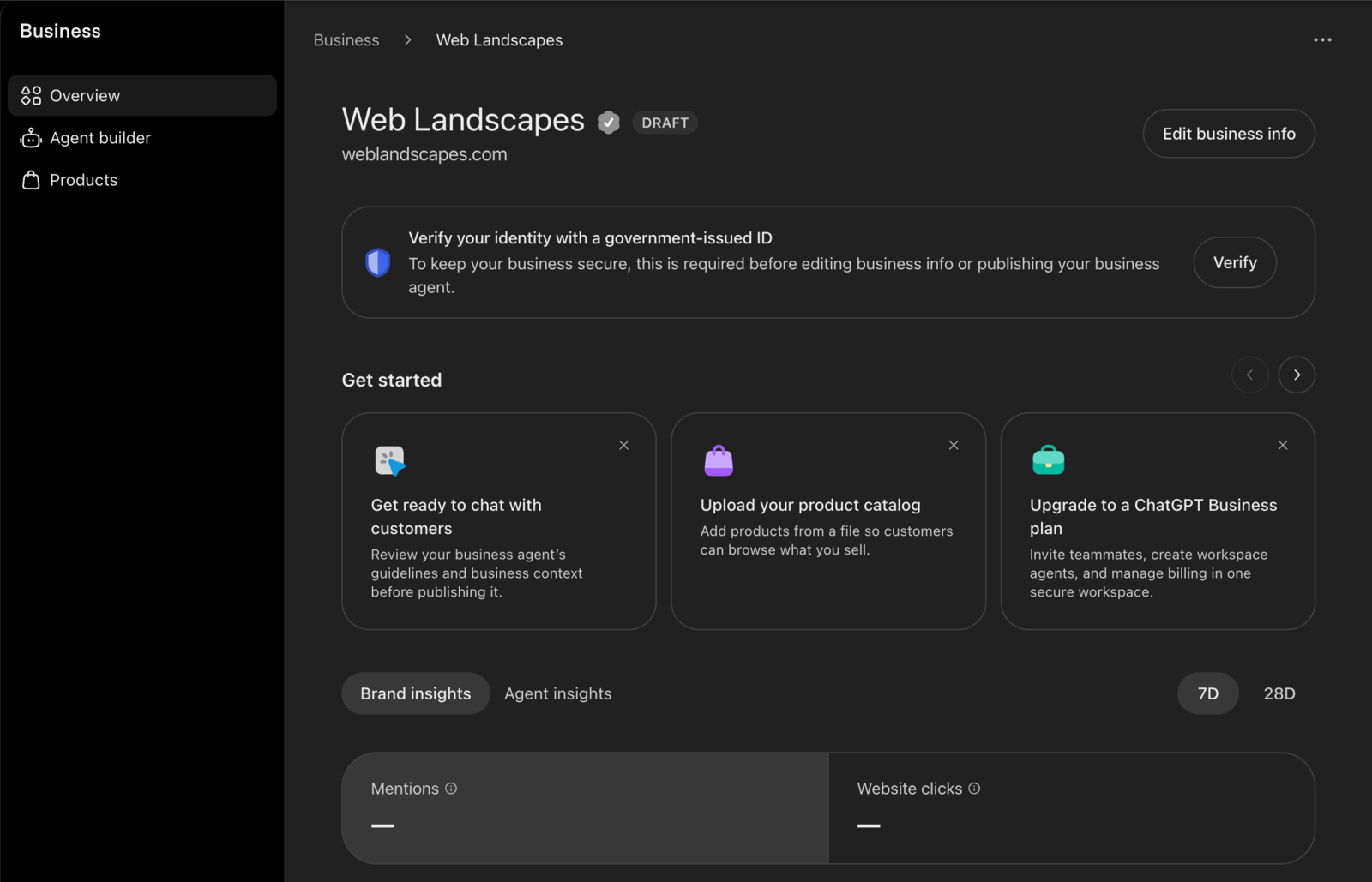
The Agent builder and Products pages are locked in a draft. Each shows the same identity banner and no controls.
 Tip
This is the last point where you can walk away. The three-dot menu at the top right of the overview has Delete draft. After the identity check is approved, there is no delete.
ChatGPT Business Hub verification of your identity
Select Verify on the banner. The check is run by an outside identity verification company that ChatGPT opens for you, on a page outside chatgpt.com, and it hands over to your phone so you can use its camera. Start it only from the Verify button, never from a link in an email. We did this part on a phone and have no screenshots of it to show, because those screens hold our registration number and addresses.
Fill in the business details
The first screen asks for:
- Legal business name, as registered.
- DBA (Doing Business As) name. Ours was already filled in from the profile name and could not be edited.
- Where is your business located? A country.
- Business type: Sole Proprietor or Entity.
ImportantSole Proprietor was already selected when the screen opened. If your business is an LLC or a corporation, change it to Entity before you continue.
Give the registration number and the addresses
The second screen asks for:
- Registration number value. In the United States the hint shows the format of an Employer Identification Number, such as 12-1234567.
- Business Website, already filled in.
- Physical address (no PO boxes).
- Legal registered address, with a Same as physical address checkbox.
The help page says the business name, the address and any registration or tax number must match official records. Copy them from your registration papers, not from memory.
We don't know whether the physical address given here is ever shown publicly. Neither the help page nor the terms answered that when we read them. If you work from home, weigh that before you continue.
Photograph your ID
Next come a photo of a government-issued ID and a selfie. The help page says the check may also ask for business registration information and proof that you are authorized to act for the business.
You'll know it worked whenthe last screen of the identity check says your application is in review.
What Pending looks like
Right after the identity check, Business Hub opens on a list titled Business, with an Add button. Our row shows the business name, the website, the words Continue verification and a Pending tag.
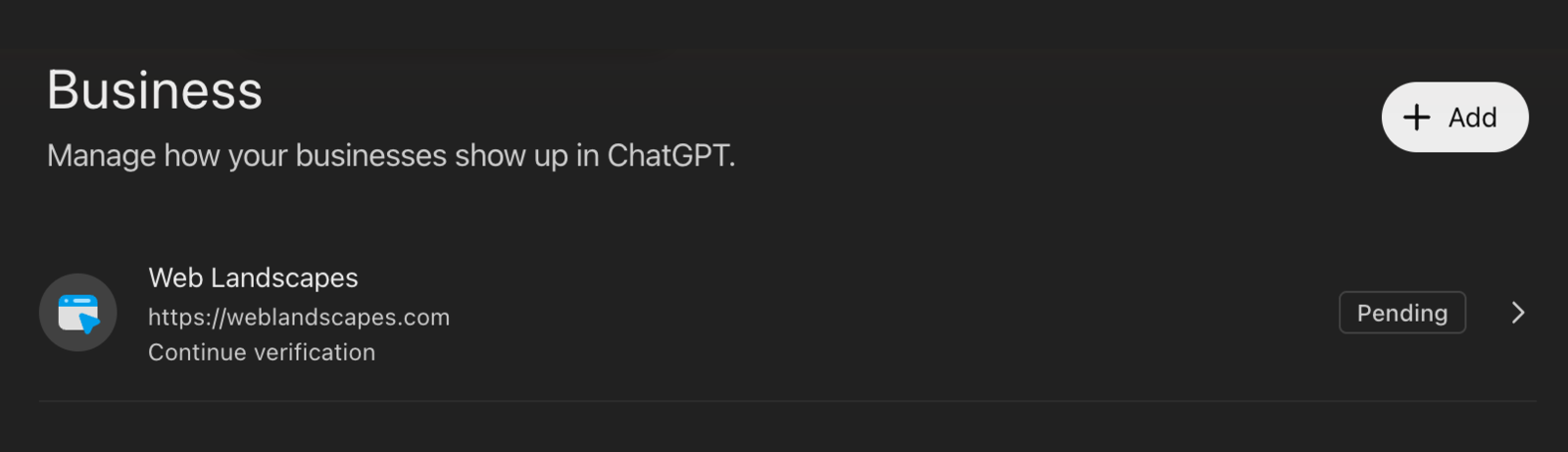
Inside, the overview still shows the DRAFT tag and the same "Verify your identity" banner, as if nothing had been sent. That is normal. The help page says the decision, or a request for more information, comes by email.
Don't select Verify again while the business is pending. The help page says to wait for the review to finish before retrying.
What happens after approval
We are not there yet. This section repeats OpenAI's help page as we read it on November 14, 2026, and we will replace it with what we see.
- The profile is published automatically. When the identity check was used to create a new profile, approval publishes it. There is no separate publish step.
- The blue check comes from the approved identity check, not from the claim itself.
- You can edit the website, description, category, logo, cover photo, delivery policy, return policy and other optional details. OpenAI reviews changes before they are published, and that can take time.
- Products: you can upload a product feed as a file or connect a supported online store. A feed is no guarantee that a product gets recommended.
- Insights cover the last 28 days. For an online business, a mention is counted only when ChatGPT refers to your website. The brand name alone doesn't count. A blank doesn't mean zero, and no conversations are shared with you.
- Business agents are for eligible ecommerce and online service businesses in the United States that have a website. Publishing one is separate and optional. An agent can't complete purchases, make bookings or check orders. It explains and links to your website.
- Teammates and agencies: the admin who claimed can add teammates and give an agency access, each with their own ChatGPT account.
What we have not seen yet
We would rather say this than guess:
- How long the review takes. Ours has been pending since the morning of November 14, 2026.
- The decision email, and what an approved profile looks like to a customer in a ChatGPT answer.
- Insights with real numbers in them.
- The path for a physical location, and the path for a business that is already listed.
- The agent builder and the product upload after verification.
- Whether Business Hub appears in Spanish. Every screen we saw was in English.
- Whether leaving the phone number blank skips the phone code.
We will update this guide, with the date, as each of these happens.
If something goes wrong
Verify domain fails after you saved the record
Check the four mistakes under Add the record. Then look the record up from outside your provider with any free DNS lookup tool: ask for the TXT record of openai-business-profile.yourdomain.com. If the tool shows your value, wait a few minutes and select Verify domain again. If it shows nothing, the record is in the wrong place or wasn't saved.
The record expired before you could add it
The value is good for 24 hours. We did not let ours run out, so we have not seen what ChatGPT shows then. A new attempt makes a new code. When you get one, change the value of the record you already added instead of adding a second record.
A code doesn't arrive
For the phone, go back and choose the other method: an automated call instead of a text, or the reverse. For the email, check the spam folder, wait for the countdown and select Resend code, or select Change email if the address was mistyped.
You continued with Sole Proprietor and you are an LLC
The help page says the details must match official records. We changed ours before continuing, so we have not seen how to correct it afterward. If the review asks for more information, answer that email. Don't start a second claim.
The business still says Draft after the identity check
That is what ours shows too. The Pending tag on the Business list is the sign that the check was received. Wait for the email.
Someone else already claimed your business
The help page says a business that is already claimed has Dispute ownership in the profile's menu, and that a locked listing shows Contact support. We have not used either.
Questions about claiming a business in ChatGPT
How do I add my business to ChatGPT?
Sign in to ChatGPT, open chatgpt.com/business-hub, search for your business and select it, or choose Create if it isn't listed. Then verify that you control the business, fill in the category, description and contact details, answer the delivery and return questions, and pass the identity check with a government-issued ID. OpenAI reviews it and emails a decision.
Is it free to claim a business in ChatGPT?
We were not asked to pay at any step, and we used a free ChatGPT account. The confirmation screen offers an advertising credit and a paid plan. Neither is needed to claim. OpenAI's help page says no advertising account or enterprise agreement is required.
Does claiming my business make ChatGPT recommend it more?
No. OpenAI's help page says claiming doesn't guarantee more visibility and that advertising doesn't influence ChatGPT's own answers. Claiming lets you give correct details and see some numbers.
What is the TXT record for ChatGPT business verification?
A DNS record of type TXT, with the name openai-business-profile and a value that starts with openai-business-profile= followed by a code unique to your claim. ChatGPT shows the exact value on the Verify that you control screen, and it expires after 24 hours.
Can a service business claim its profile?
In our run on November 14, 2026 there was no separate choice for services. We are a service business. We chose Through a website, answered the delivery question with We don't offer delivery and the return question with Returns not accepted, and reached a draft.
Can I delete a ChatGPT business profile?
A draft, yes: the three-dot menu on the business overview has Delete draft. A published profile, no. OpenAI's help page says support can't delete, unpublish or hide a published profile.
How long does ChatGPT Business Hub verification take?
We don't know yet. OpenAI's help page gives no time. Ours has been pending since November 14, 2026, and we will add the answer here when the email comes.
Can an agency or an employee claim the business for me?
The terms are accepted by whoever starts the claim, and that person states they have the authority to bind the business. The identity check asks for a person's own ID. We think the owner should claim on an account the business keeps, and then add teammates or an agency, which the help page says the admin can do.
Printable checklist
Tick each box as you go. The PDF has the same list on paper.
Want us to do it for you?
We claim it for you. We search for your listing, write the category and the 300-character description, add the TXT record or send your DNS provider the exact values, fill in every screen and answer the code checks with you on a short video call. Two steps stay yours, because OpenAI asks for them: you accept the terms on your own ChatGPT account and photograph your own ID. If OpenAI asks for more information during the review, we help you answer it.
Claim your business in ChatGPT, done for you $290
The full guide as a PDF
The pre-flight worksheet with every field and its limit, five description examples by kind of business, the TXT record by kind of DNS provider with a message for whoever manages yours, a longer list of fixes, the notes for doing a client's claim and a checklist for after approval.
Free, no sign-up. The files are in English.
Official help
Web Landscapes is not affiliated with, sponsored or endorsed by OpenAI. Product names and logos are trademarks of their owners, used here only to describe their products.
Next guideSet up your Google Business Profile →