


Web Landscapes Guides Google Business Profile setup
Set up your Google Business Profile
Your Business Profile is the box Google shows for your business on Search and Maps: hours, photos, reviews and the buttons to call or get directions. This guide takes you from no profile to a verified, complete one.
- Time
- About 1 hour, plus up to 5 business days for Google's review
- You'll need
- A Google account, your business details and a phone that can record video
- The result
- A verified profile with the right hours, services, photos and a review link to share
Before you start
- Use a Google account you'll keep for years, ideally one on your business email. Whoever owns this account owns the profile.
- Your business name exactly as it appears on your sign, your website and your paperwork. No extra words like "best" or a city name.
- Your address, if customers visit you there. If you go to your customers instead (plumbers, cleaners, mobile services), you'll set a service area and hide the address.
- Your phone number, website address and opening hours.
- A phone that can record video, and access to your premises, your vehicle or your tools for the verification video.
- Five or more real photos: the outside, the inside, your team, your work. No stock photos.
Create only one profile per business. If Google already shows a profile for your business, claim it instead of making a new one. Duplicates get merged or suspended.
Create the profile
Start at business.google.com
Go to business.google.com/add, signed in with the Google account that will own the profile, and select Add your business to Google.
TipIf Google says the business already exists and someone else manages it, follow the on-screen option to request access. Don't create a second profile.
Type your business name
Type the name exactly as customers see it on your sign. Google rejects names stuffed with keywords or locations, and doing it can get the profile suspended.
Choose the main category
Start typing what you are ("Dentist", "Plumber", "Bakery") and pick the closest match from Google's list. The main category matters more than anything else for which searches you show up in. You can add more categories later.
Say whether customers visit you
If customers come to your address, add it. If you serve customers at their place and they never come to yours, say so: you'll add the areas you cover instead, and your address stays hidden.
ImportantGoogle's own rule is that if you don't serve customers at your business address, the address comes off the profile. You can list up to 20 service areas (cities or postal codes), and they shouldn't reach more than about 2 hours' drive from where you're based.
Add your phone and website
Add the number customers should call and your website address. If you don't have a website yet, skip it and add it later.
You'll know it worked whenGoogle asks how you want to verify. Your profile exists, but nothing shows publicly until it's verified.
Verify that the business is real
Google has to confirm the business exists before the profile shows on Search and Maps. It offers one or more of these, depending on the business: a phone call or text, an email, a live video call, a postcard by mail, or a video recording. You can't pick a method Google doesn't offer you.
Choose the method Google offers
If you leave the setup and come back, open your profile and select Get verified to see the options.
If Google asks for a video, plan one continuous take
The video should prove three things: where you are, that the business is real, and that you're in charge of it. A good order:
- Outside: the street sign or a nearby landmark, then your storefront or the business vehicle with its signage.
- Your business in action: the equipment or tools you use, stock, your workspace.
- Proof you manage it: unlock the door or the vehicle, open the register, or show business paperwork with your name.
Keep it in one shot, without cuts or edits. If you work from home or from a vehicle, film your vehicle, tools and paperwork rather than your house.
Wait for Google's review
Google says verification reviews take up to 5 business days. Don't change the name, address or category while you wait: an edit can restart the review.
ImportantGoogle never asks you for your verification code. Never share it with anyone, including someone who helps you manage the profile.
You'll know it worked whenyour profile shows on Google Search and Maps when you search your business name, and the panel above the results says Your business on Google.
Fill in the details
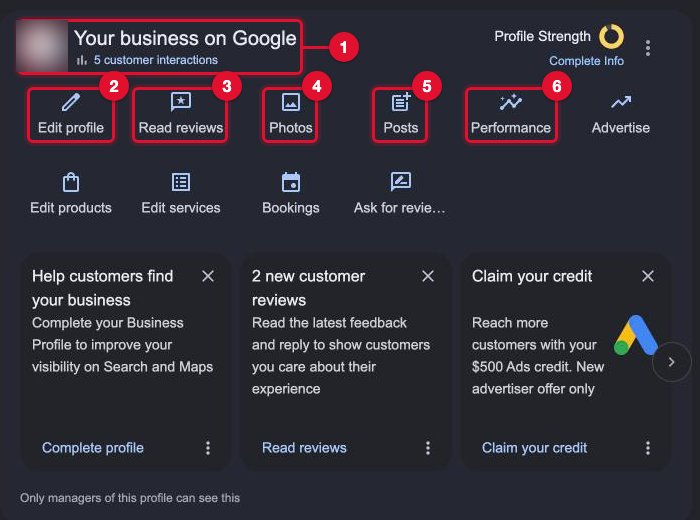
Search Google for your exact business name while signed in. Because you manage the profile, a panel appears above the results with buttons for everything below. Only you and other managers see it.
Set your hours
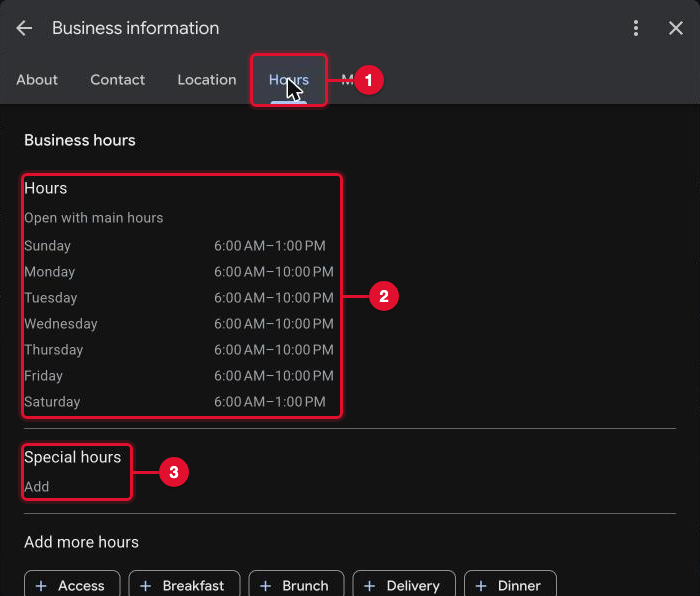
Select Edit profile, then the Hours tab. Select the hours list, choose Open with main hours, tick each day you're open and set the times. For a lunch break, add a second set of hours on that day. Select Save.
Add holiday hours
On the same tab, under Special hours, select Add. Google suggests the coming holidays; you can add any other date too. Mark each date Closed or set that day's hours, and select Save. Do this two weeks before each holiday so nobody drives to a closed door.
Add your services
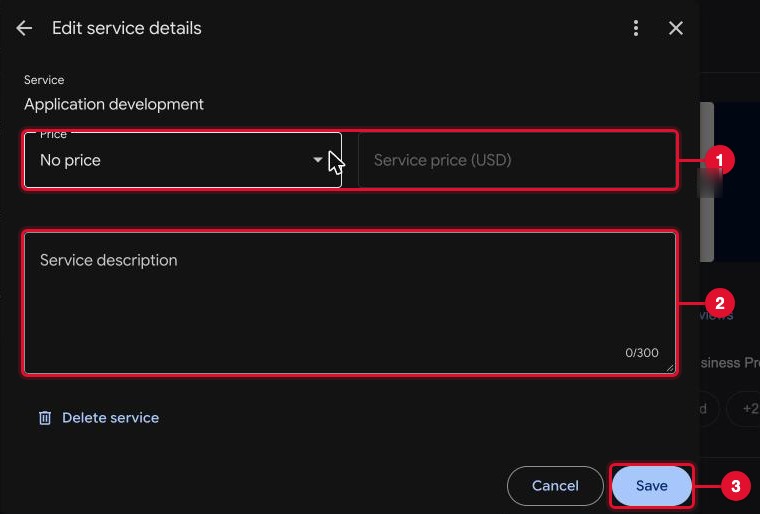
Select Edit services. Pick services from Google's suggestions or add your own. Select a service to give it a short, plain description and, if you want, a price. Select Save.
Write the description
In Edit profile, under About, write two or three plain sentences: what you do, who for, and what makes you easy to work with. No phone numbers, links or offers in the description.
Add photos
Select Photos, then Add photos. Upload your logo, a cover photo and at least five real photos. Google's limits: JPG or PNG, between 10 KB and 5 MB, at least 250 x 250 pixels (720 x 720 or larger looks best).
You'll know it worked whenthe new hours, services and photos show on your public profile. Edits usually go through within minutes but can take longer. While an edit says Pending, don't change it again.
Publish your first post
A post is a short update with a photo that shows on your profile. One a week shows people the business is active.
Open Add post
Select Posts, then Add post. Choose Update for most posts. Use Offer only for a real discount with start and end dates, and Event only for something with a date and time.
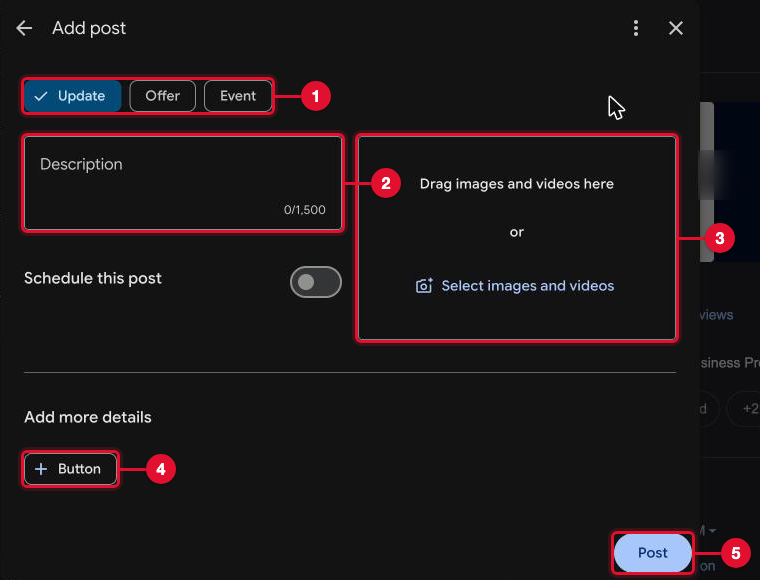
Write it and add a photo
Use a real photo of your work, your place or your team. Write 80 to 200 words: the first sentence says what it's about, the last says what to do next. Leave phone numbers and links out of the text.
Add a button and publish
Under Add more details, select Button and pick one, such as Book or Call now, with your link or number. Select Post.
You'll know it worked whenthe post shows on your profile with the status Live. Pending means Google is still checking it.
Ask for reviews the right way
Copy your review link
Select Read reviews, then Get more reviews. Copy the Review link with the copy icon, and save the QR code by right-clicking it and choosing Save image as. The QR code is only offered on a computer.
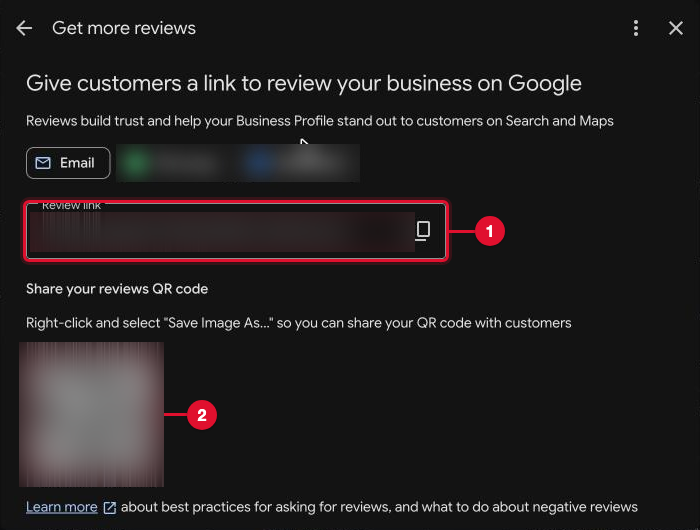
Ask every customer the same way
After a visit or a job, send one short, neutral message, for example: "Thanks for choosing us. If you have a minute, we'd appreciate an honest review on Google: [link]. It helps others find us." Send one reminder at most.
ImportantGoogle prohibits offering "payment, discounts, free goods and/or services" for a review, and asking only happy customers. Never offer a discount, a gift or a prize draw for a review, never hand someone a tablet to review on the spot, and never let staff, family or friends post reviews.
Reply to every review
Open Read reviews and use the Unreplied tab. Select Reply, write a short answer in the reviewer's language, and post it. Thank good reviews with one specific detail. For a bad review: thank them, show you read it, apologize where it's deserved, and invite them to contact you privately. Never argue, and never share details of their visit or what they paid.
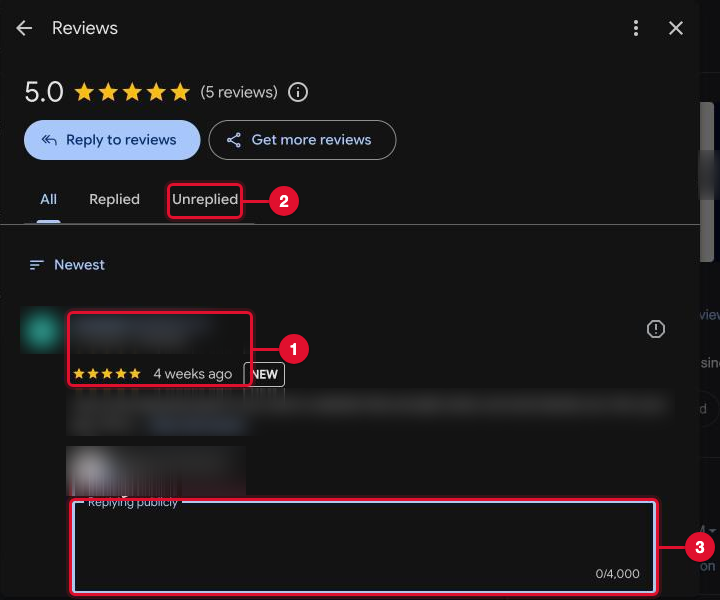
Let someone help without sharing your password
If a staff member or an agency looks after the profile, add them as a manager. You stay the owner, and you can remove them at any time.
Open People and access
On your profile, select the three dots, then Business Profile settings, then People and access.
Add them as a Manager
Select Add, type their email address, choose Manager under Access, and select Invite. A manager can edit the profile and reply to reviews but can't remove you or delete the profile. Never give your own Google password instead.
If something goes wrong
You don't see the management panel when you search your business
You're signed in to a different Google account. Select your picture at the top right and switch, or open business.google.com and pick the business from the list.
The profile says it needs verification
Select Get verified and finish a method Google offers. Don't create a new profile to get around it.
Your video verification was rejected
Google shows Review issues. Record a new continuous video that shows the location, the business working and your proof of management more clearly, and send it again.
A post or reply says Not approved
It broke a content rule. Remove phone numbers, links inside the text, claims like "best in town", and offers without dates, then post it once more.
An edit has been Pending for days
Google is checking it, and some edits take longer. Don't change it again while it's pending. If it ends up Not approved, check that it matches your sign, your website and your paperwork.
The profile is suspended or disabled
Stop editing and don't create a new profile. Read Google's notice, fix what breaks the guidelines (usually the name, the address or a service area), and use the appeal Google offers from the notice. Google allows one appeal per decision, so get it right the first time.
Hours or details change by themselves
Google sometimes updates a profile from public information. In Edit profile, values Google changed show in blue. Set them back to the truth and save.
Tips
- Take 10 phone photos on your first day. That's two months of weekly posts.
- Keep your name, address and phone identical on your profile, your website and your social profiles.
- Answer reviews the same day they come in. A reply on day one reads better than a batch on Friday.
- In early November, set every holiday's hours through New Year's in one sitting.
- Check Performance once a month for calls, website clicks and the searches people used.
Printable checklist
Tick each box as you go. The PDF has the same list on paper.
Want us to do it for you?
We set up and verify Business Profiles, fix the ones that are suspended or stuck, and can look after yours every week with posts, photos, review replies and a monthly report. You stay the owner; we work as a manager.
Google Business Profile setup $390
Official help
- Google: Add or claim your Business Profile
- Google: Verify your business on Google
- Google: Guidelines for representing your business
- Google: Service-area businesses
- Google: Edit your business hours
- Google: Create a link or QR code to request reviews
- Google: Prohibited and restricted content in reviews
- Google: Manage owners and managers
- Google: Fix suspended or disabled profiles
Web Landscapes is not affiliated with, sponsored or endorsed by Google. Product names and logos are trademarks of their owners, used here only to describe their products.
Next guideMove your domain from GoDaddy to Cloudflare →